Reference
Toolbar
Every control in the toolbar along the top of Visual Backlog, and the controls at the corners of the map, from left to right.
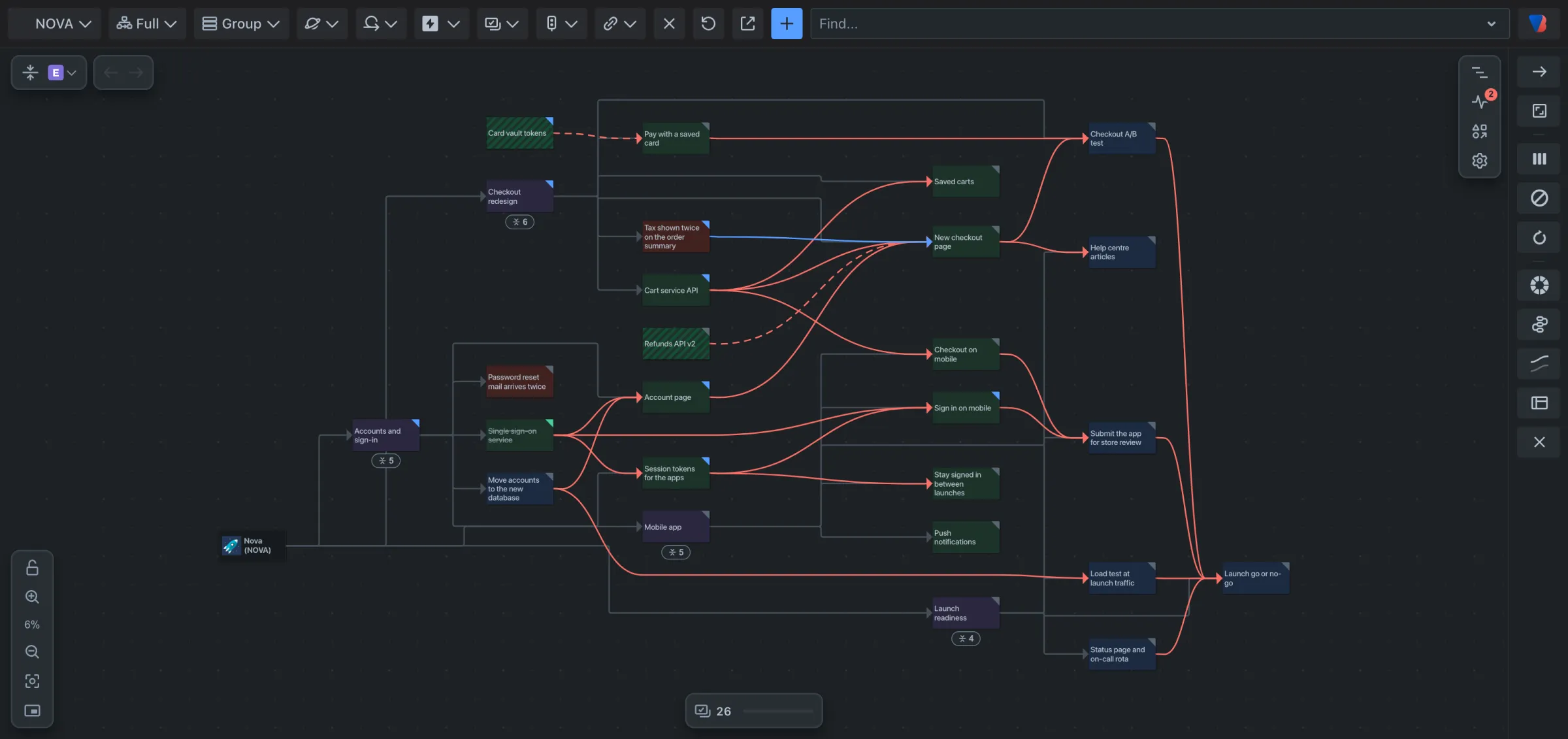
Toolbar, from left to right
| Control | What it does |
|---|---|
| Source menu (shows the space’s key, a release’s name and so on) | Chooses where the map’s work comes from. See Sources. |
| Mode (shows Full, Dependencies or Parent) | Chooses which lines are drawn and how the map is laid out. See Modes. |
| Group | Puts the map into lanes. See Grouping. |
| Space filter | Shows or hides each space’s work, and External work items: work in other spaces that this work is linked to. |
| Sprint filter | Shows or hides work by sprint. Backlog is work in no sprint. Shown for spaces that use sprints. |
| Initiative filter | Shows or hides work by initiative, with Work items without an initiative. Shown when your site has a level above epic. |
| Epic filter | Shows or hides work by epic, with Work items without an epic. |
| Work type filter | Shows or hides work by type: epic, story, task, bug and your own types. |
| Status filter | Shows or hides work by status, grouped under To do, In progress and Done, and sets Load done work finished within: None, 1 wk, 2 wk, 1 mo, 3 mo, All or Other. |
| Link type filter | Chooses which link types are drawn. |
| Reset filters (×) | Sets every filter back to showing everything. |
| Reload Jira data | Reads the work again from Jira. |
| Open in Jira search | Opens the work items now on the map as a list in Jira. |
| Create work item (blue +) | Creates a work item with Jira’s own form. |
| Find… | Finds a card by title or key and moves the map to it. |
| Visual Backlog menu (the logo) | Copy link to this view, What’s new, links to the documentation and to support. |
Filters only offer what the source brought in. How to use them is in Filter the map.
Top left of the map
| Control | What it does |
|---|---|
| Fold button | Folds everything to the chosen level, for example Fold to Epic; click again to Unfold all. |
| Arrow beside it | Fold to level: picks the level. |
| Back and Forward | Move through the maps you have looked at. See Go back and forward. |
Bottom left of the map: zoom
| Control | What it does |
|---|---|
| Lock Interactivity | Locks the map so cards and lines cannot be changed by accident. |
| Zoom in | Zooms in a step. |
| The percentage | Drag on it to zoom; click it to fit the map to the screen. |
| Zoom out | Zooms out a step. |
| Fit to view | Fits the whole map to the screen. |
| Show the minimap | Shows a small overview of the map in the corner. It starts hidden. |
Bottom of the map
The count is how many work items are on the map. When work is folded it also says how much, for example 20 folded below Epic.
Right of the map
Four icons open the panels: Navigator, Backlog health, Legend and Settings. The column at the far right holds the layout settings.
The Visual Backlog menu
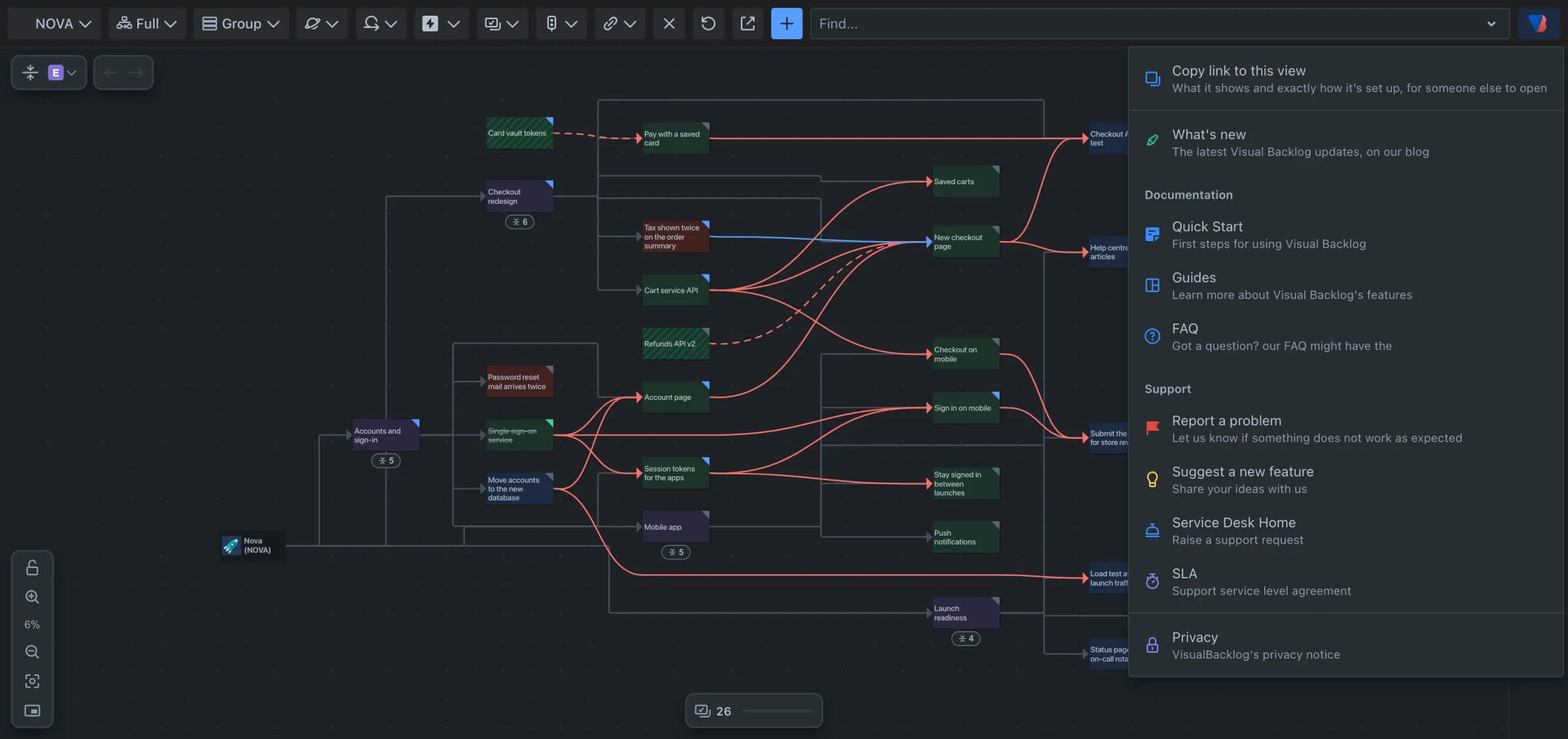
Copy link to this view copies an address that opens the map as you have set it up, for someone else to open.