Guides
Find your way with the Navigator and the keyboard
Find a work item on a large map with Find and the Navigator, and use Shift and Alt to see what a card is linked to or zoom to it.
A map of a busy space can hold hundreds of cards. These are the quick ways to find one and to see what it is connected to.
Jump to a work item by name
- Click Find… in the toolbar.
- Type part of the title or key.
- Pick the work item. The map moves to its card, which gets a blue outline.
Browse with the Navigator
- At the right of the map, click the first icon, Navigator.
- Under Hierarchy, open a space or an epic with the arrow beside it.
- Point at a row. The map moves to show that work item.
- Click a row to go there and stay.
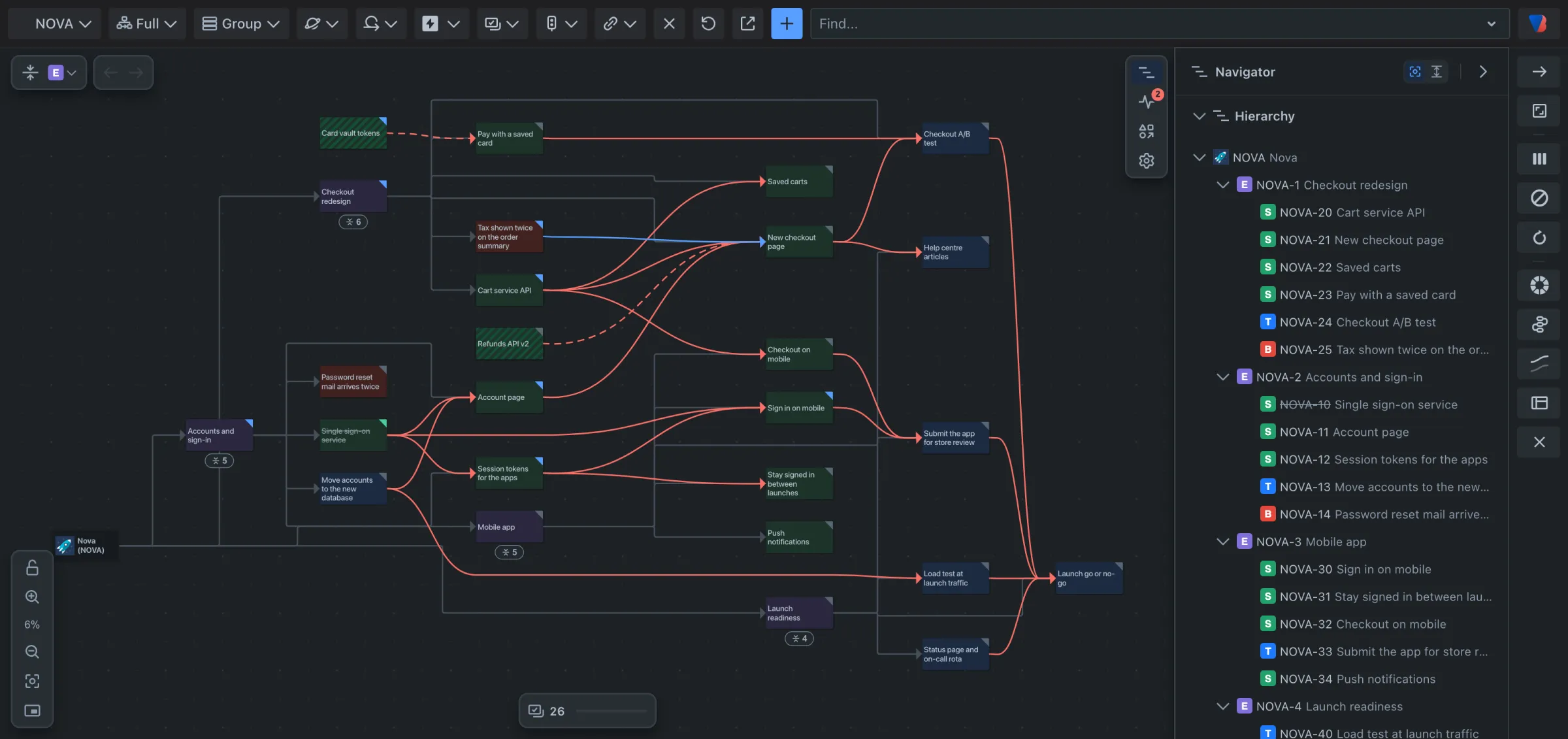
It works the other way too: click a card on the map and its row opens in the list.
The Navigator also lists every link, grouped by the two work items it joins.
To stop the map moving as you point, turn off Follow the pointer at the top of the panel.
See what a card is linked to
- Hold Shift and point at a card. The card and what it is linked to stay bright; everything else fades.
- Hold Shift and click the card to keep it that way.
- Click Show all to bring everything back.
Zoom to a card, and back out
- Hold Alt (Option on a Mac) and click a card. It fills the screen.
- Hold Alt and click an empty spot. The whole map fits the screen again.
All the shortcuts
| Do this | On | What happens |
|---|---|---|
| Hold Shift and point | a card | See what it is linked to; everything else fades |
| Hold Shift and point | a line | Highlight the two work items it joins |
| Shift + click | a card | Keep showing only that card and what it is linked to |
| Alt + click | a card | Zoom so the card fills the screen |
| Alt + click | a line | Zoom to both ends of the line |
| Alt + click | an empty spot | Zoom out to the whole map |
| Shift + click | a Navigator row | The work item and what it is linked to |
| Alt + click | a Navigator row | Just that work item, without what is inside it |
| Esc | Back to the whole map |
While you hold Shift or Alt, the pointer changes to tell you what a click will do. Moving and zooming are in the keyboard and mouse reference.