Guides
Map a board, a release, a saved filter or a search
Change where the map’s work comes from: the whole space, one of its boards, a release, a saved filter, or a search written in JQL.
A map starts with the whole space. Most days you care about a slice of it. The source is where the map’s work comes from, and you change it from the source menu.
Open the source menu
- Click the source menu at the left end of the toolbar. It shows the current source, usually the space’s key.
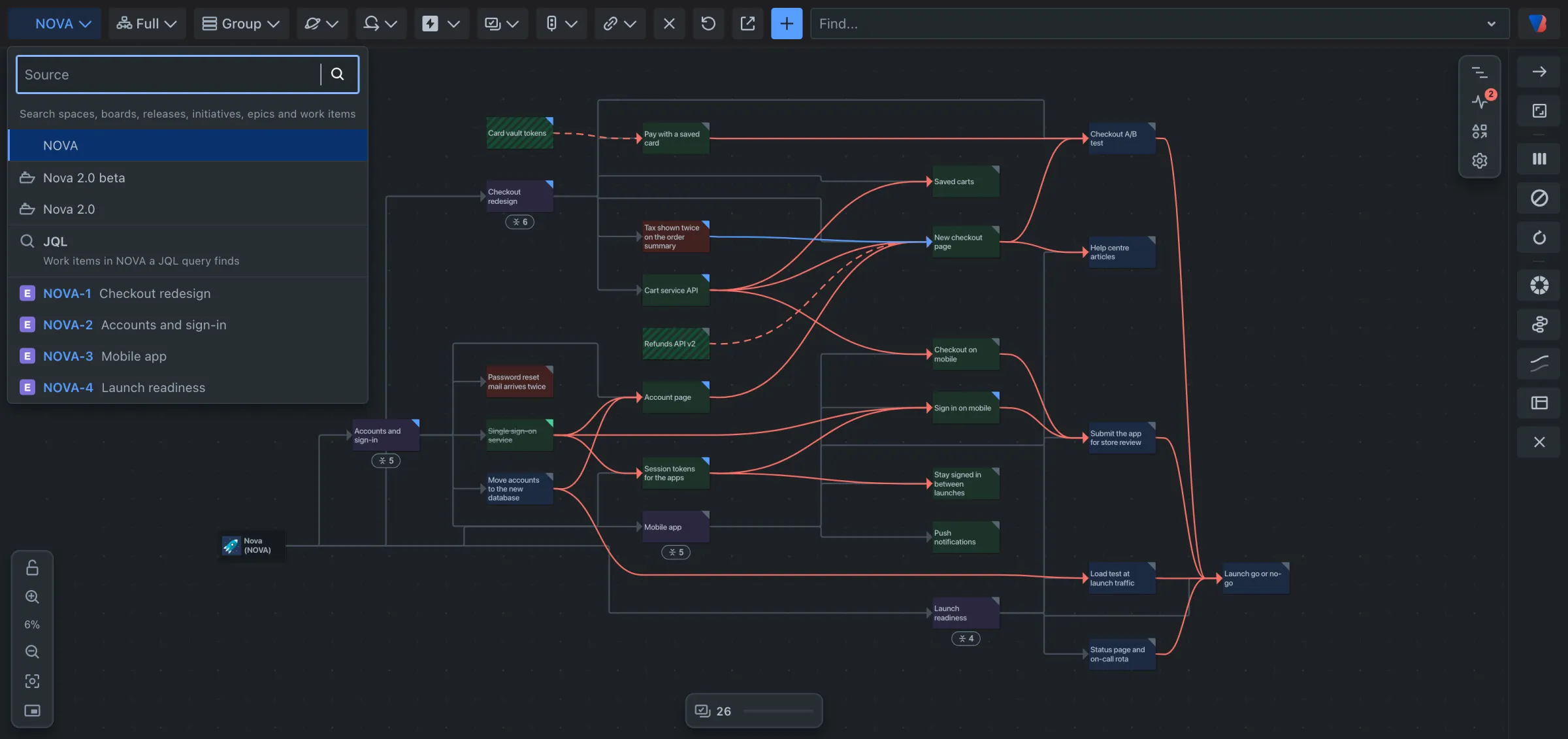
Map a board
- Open the source menu.
- Under Board, pick the board. If the space has many, type the board’s name to find it.
The map shows the work items the board’s own filter finds.
Map a release
- Open the source menu.
- Under Release, pick the release, or type its name to find it.
Map a saved filter
- Open the source menu.
- Type the filter’s name.
- Under Saved filter, pick it.
The filters you starred in Jira are listed without typing. You can find any other filter you are allowed to open by its name.
Map a search
- Open the source menu.
- Choose JQL. A search box replaces the source menu.
- Type a query in JQL, Jira’s search language. The box colours your query and suggests fields and values, as Jira’s own search does.
- Press Enter. Use Shift + Enter to add a new line instead.
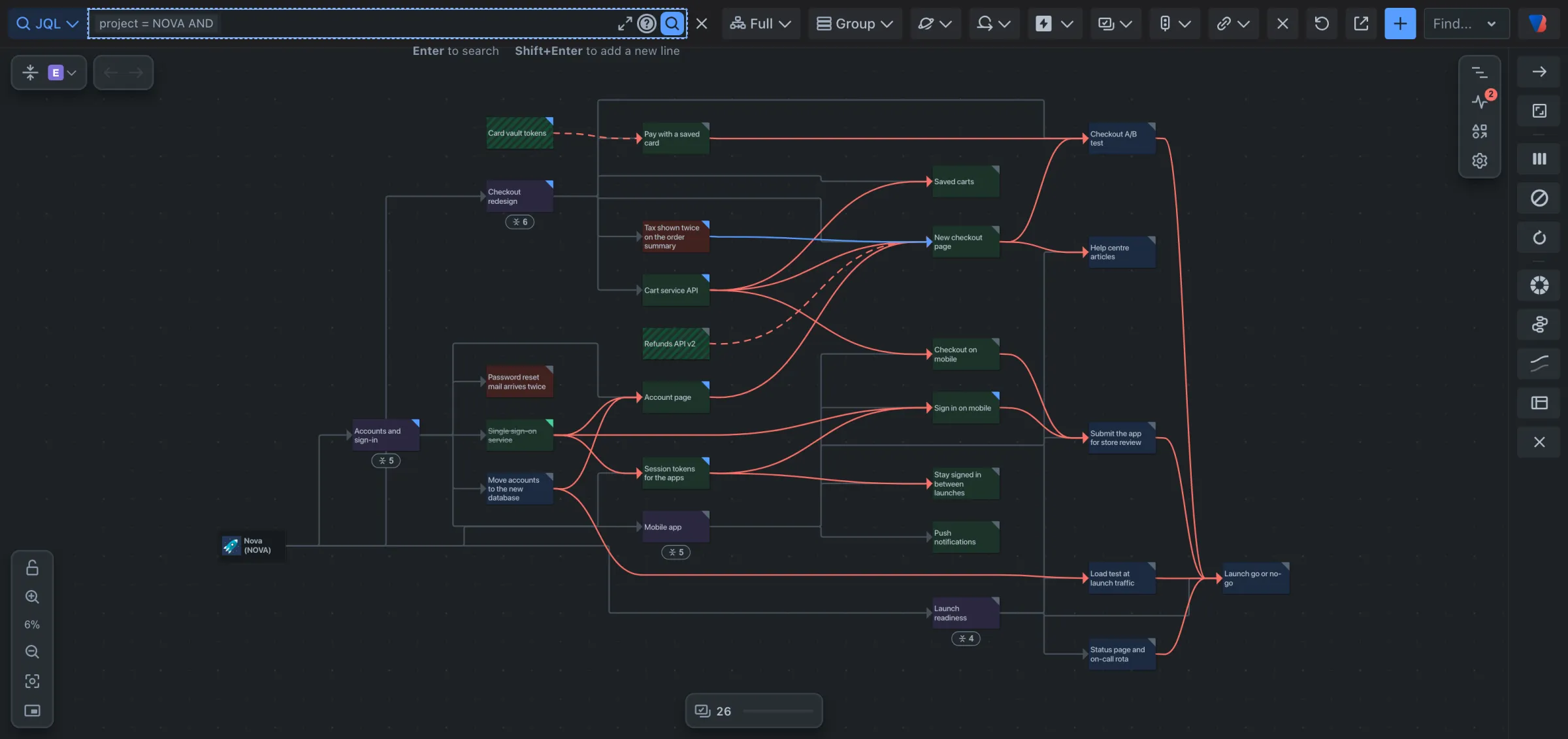
If the query has a mistake, Jira’s own message is shown under the box.
Go back to the whole space
- Open the source menu.
- Under Space, pick the space.
Or click Back at the top left of the map.
Good to know
- Changing the source is a step: Back returns to the source you had before.
- The filters in the toolbar work with every source, and only offer what the source brought in. See Filter the map.
- Work items from other spaces that the source’s work is linked to are drawn too, unless you turn External work items off in the space filter.
- Every kind of source is described in the sources reference.