Guides
Filter the map and leave out finished work
Narrow the map by space, sprint, epic, work type, status or link type, and choose how much finished work is loaded.
The source decides what work the map starts from. The filters in the toolbar narrow it down. Each filter is a button with an icon; point at one to read its name.
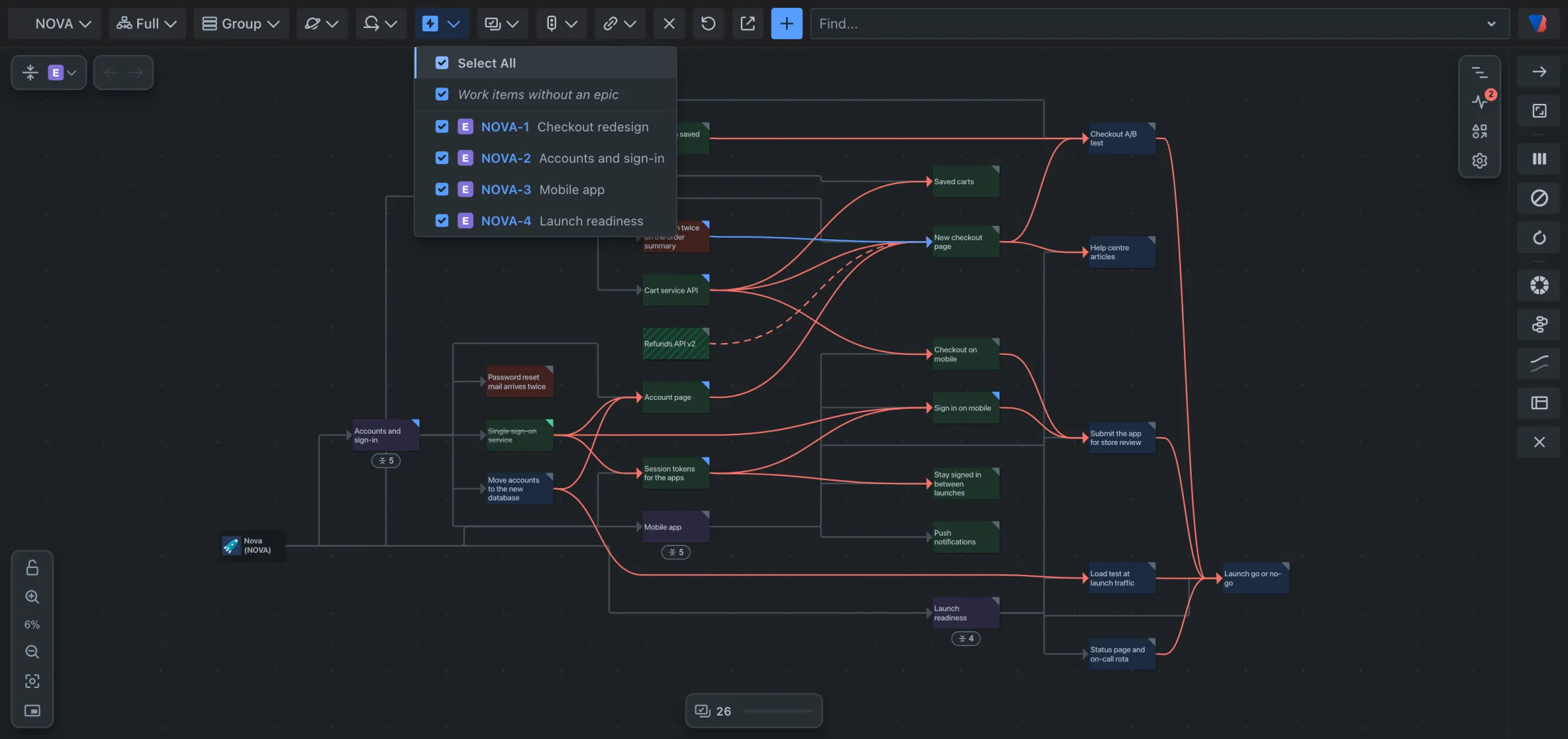
Filter by sprint, epic, work type or status
- In the toolbar, click the filter. From the left they are: space, sprint, epic, work type, status and link type.
- Untick what you do not want to see. Select All ticks or unticks everything.
- Click anywhere outside the list to close it.
Leave out old finished work
In a space that has been running for a while, most work items are done. To keep only recent ones:
- Click the status filter.
- Under Load done work finished within, choose None, 1 wk, 2 wk, 1 mo, 3 mo or All.
- For another period, choose Other and type it, for example 6w or 10d.
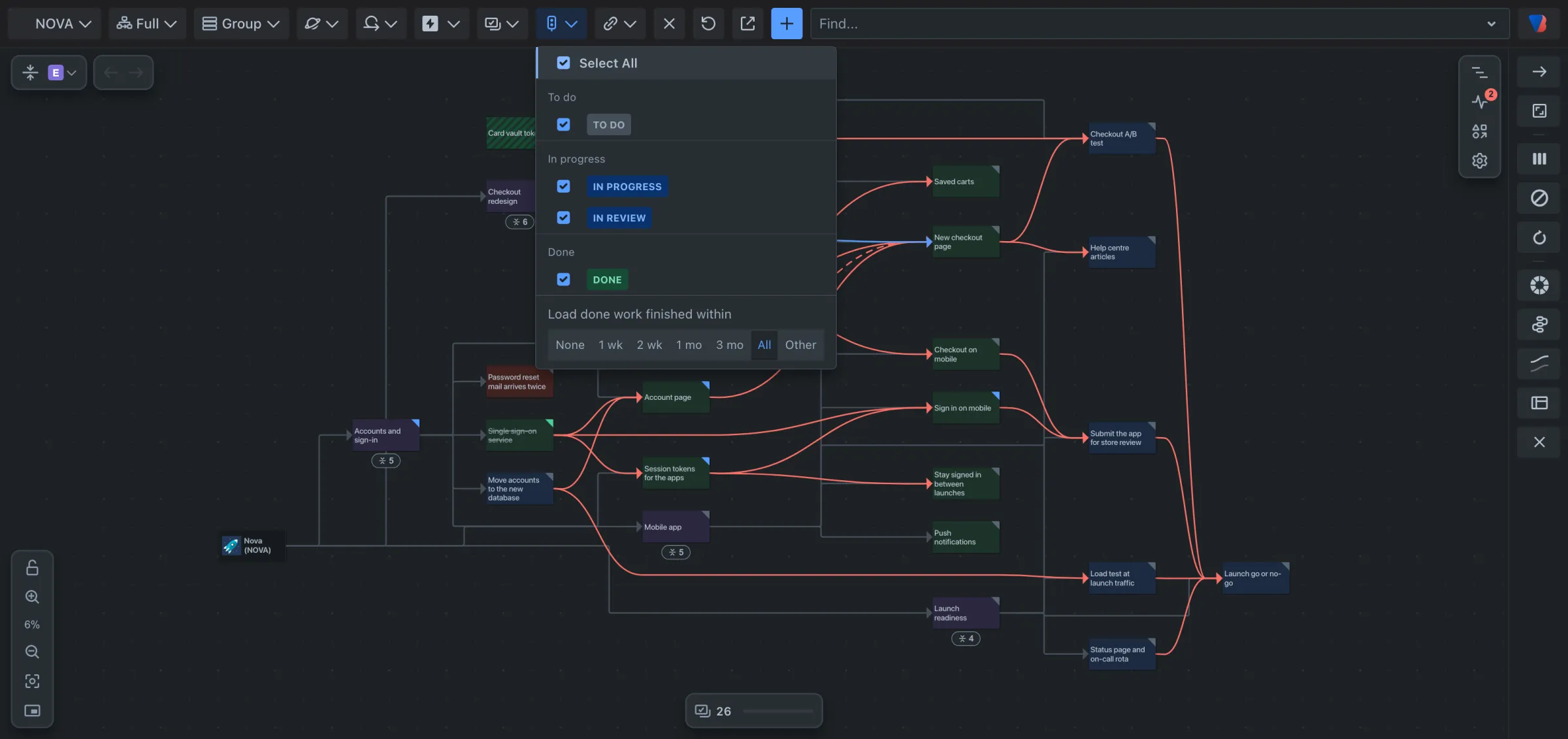
Your choice shows on the button, so you always know what the map leaves out. Leaving out old finished work also makes a large space load faster.
Show or hide work from other spaces
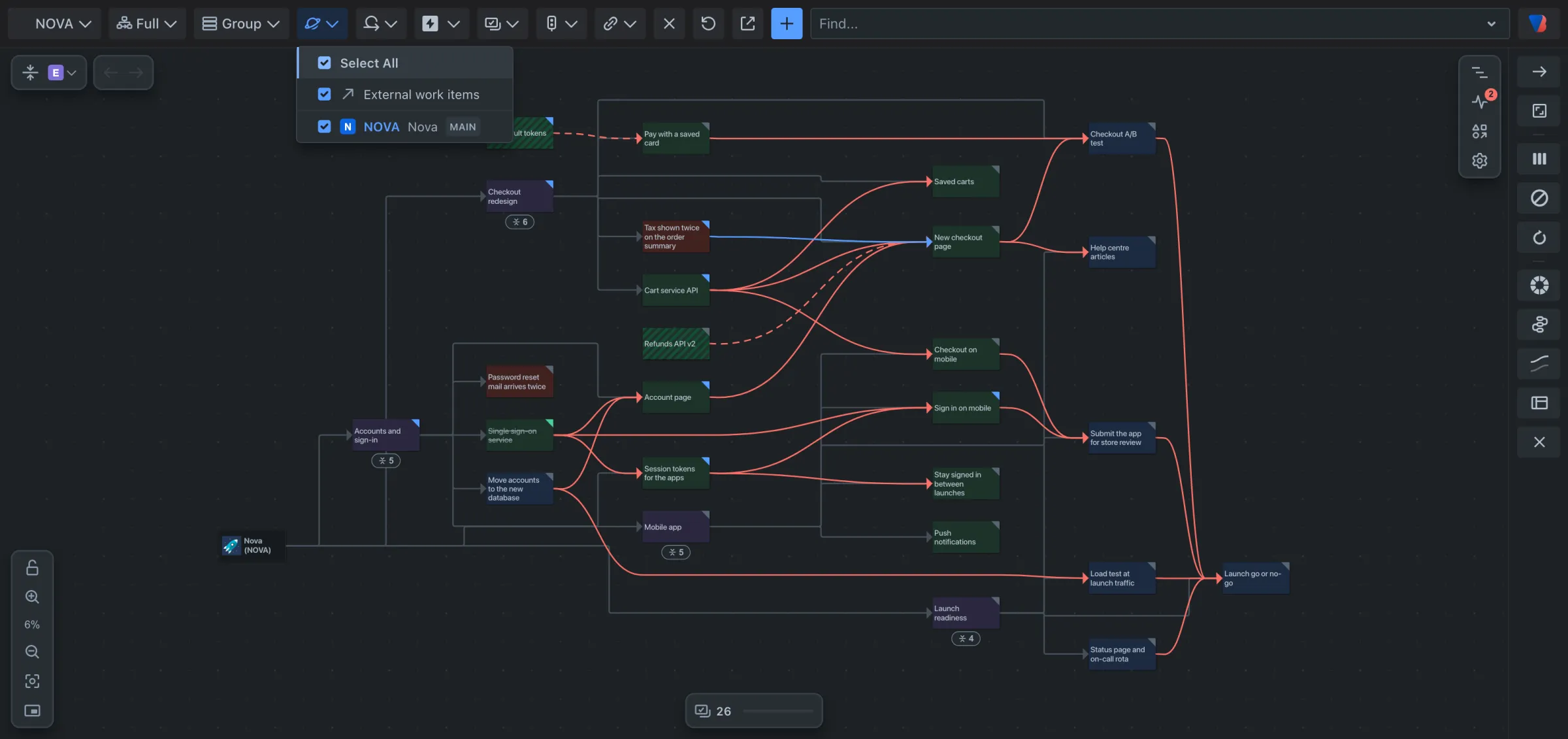
- Click the space filter, the first after Group.
- Tick or untick External work items.
Show work with no epic, or work in the backlog
- In the epic filter, Work items without an epic shows or hides work that belongs to no epic.
- In the sprint filter, Backlog shows or hides work that is in no sprint. Only the most recent closed sprints are listed; choose Show all closed sprints for the rest.
- If your site has initiatives above epics, an initiative filter appears, with Work items without an initiative.
Hide a link type
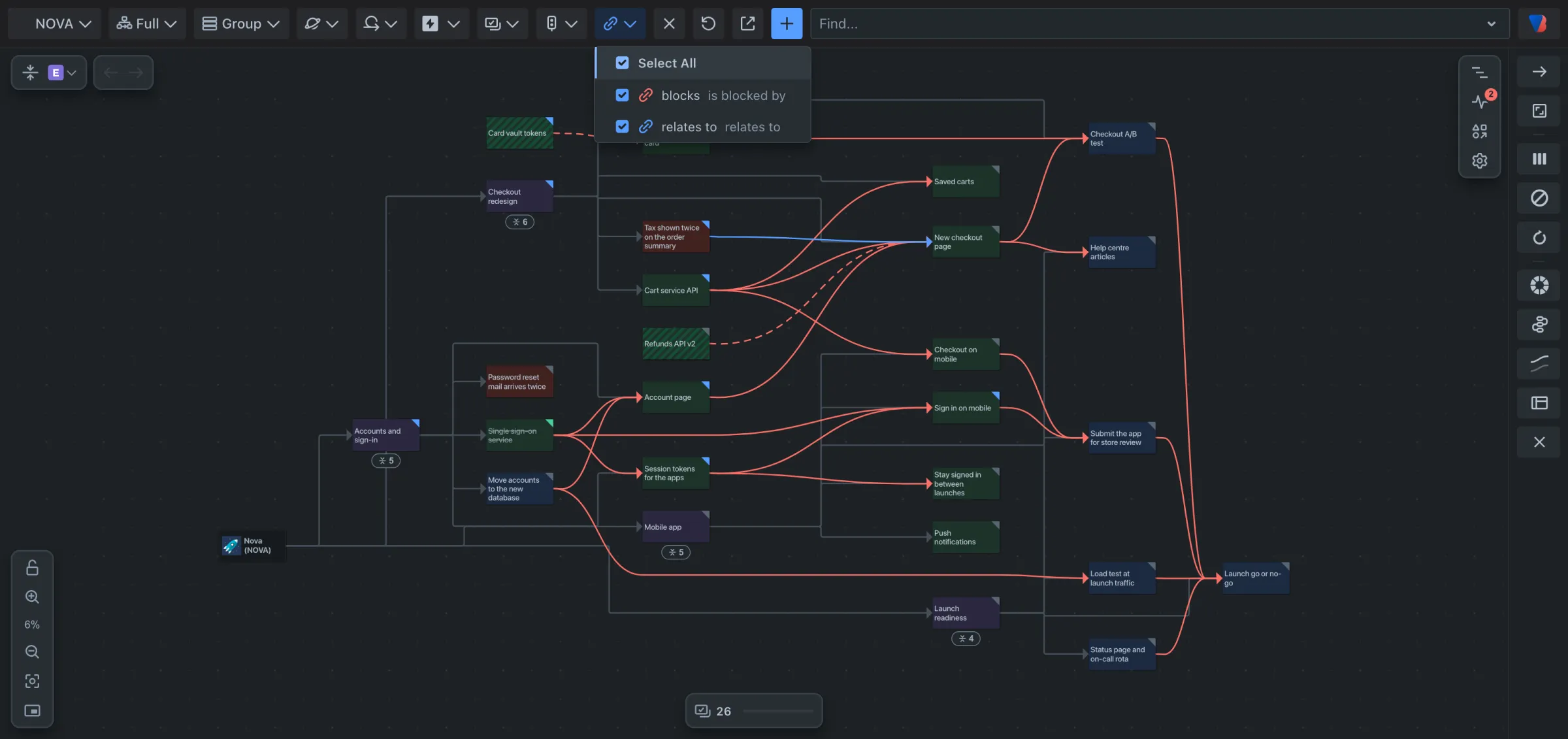
- Click the link type filter, the last one.
- Untick the link types you do not want drawn, for example relates to.
Clear the filters
- Click Reset filters, the × after the link type filter.
Good to know
- Changing a filter is a step: Back undoes it.
- Reload Jira data, the circular arrow beside Reset filters, reads the work again from Jira. Use it after someone has changed work items while your map was open.
- Open in Jira search, the next button, opens the work items now on the map as a list in Jira.