Guides
Trace what a work item is waiting on
Show one work item and everything that has to be finished before it, across spaces, from the source menu or from its card.
Use this when someone asks “what has to happen before this can ship?”. The map follows the dependencies of one work item all the way down: what blocks it, what blocks those, and so on, in any space.
From a card on the map
- Click the card of the work item.
- Above the card, click the icon of a circle with a bar, Show what this is waiting on.
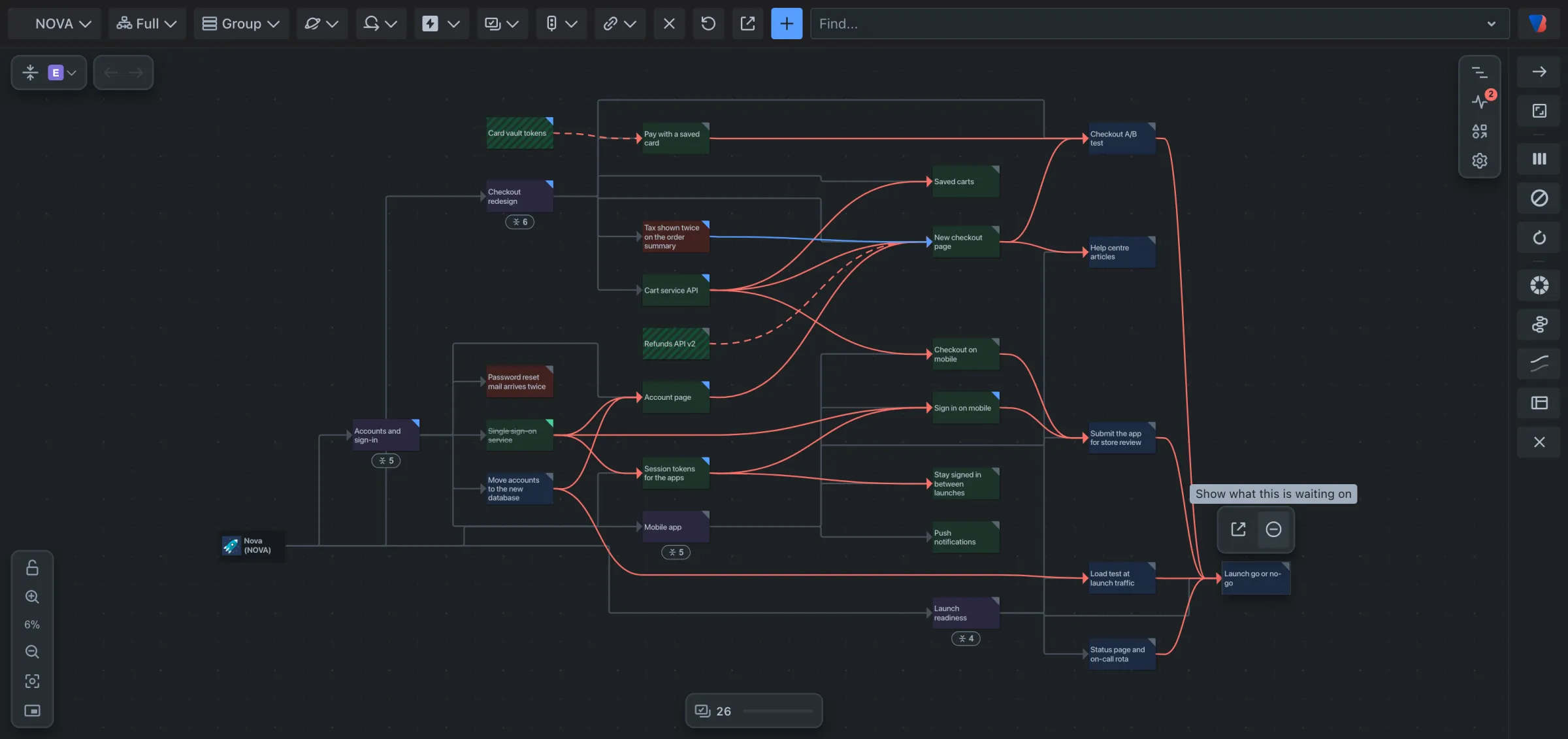
From the source menu
Use this when the work item is not on the map, or you know its name.
- Click the source menu at the left end of the toolbar. It shows the current source, usually the space’s key.
- Type the work item’s name or key.
- Under What a work item is waiting on, pick the work item.
The epics of the space, and work items you opened recently, are listed without typing.
Read the result
- The work item you picked has a yellow outline and a star. Its name is in the source menu.
- The map shows the work inside it, every work item that blocks any of that, and what blocks those.
- Work from other spaces is included, drawn as striped cards.
- Red lines are dependencies. Grey lines show what sits inside what.
Go back
- Click Back, the left arrow at the top left of the map.
Good to know
- You only see work items you are allowed to see in Jira.
- “Blocks” means Jira’s Blocks link unless your space counts other link types as dependencies. See Change which link types count as dependencies.
- A chain draws at most 500 cards. Past that the map stops following it and says so.