Guides
Go back and forward
Use the Back and Forward arrows to move through the maps you have looked at, the way you would in a browser.
Looking into a dependency usually means leaving the map you were on: you open what one work item is waiting on, switch to a release, or change a filter. Back and Forward take you through the maps you have looked at.
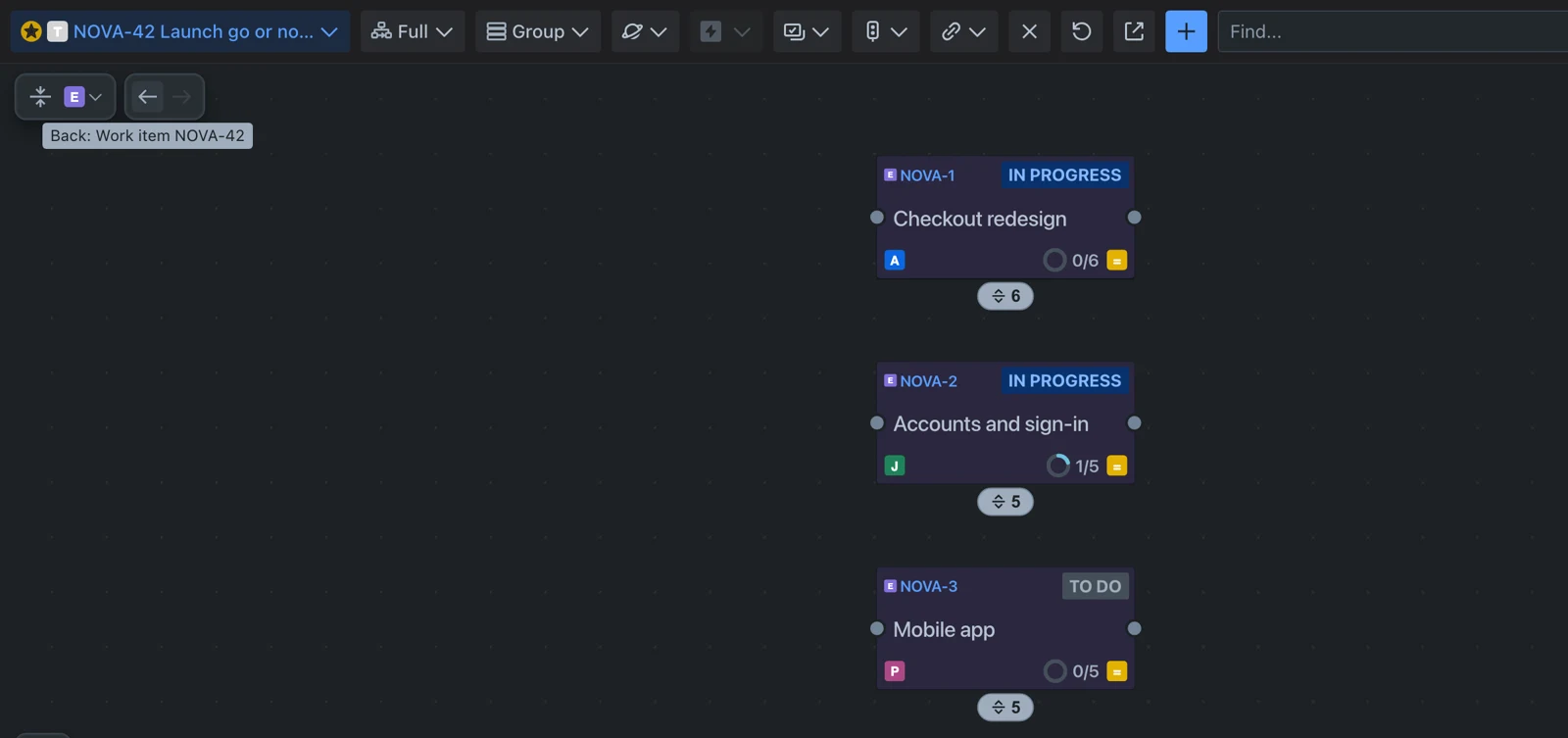
Go back
- Point at Back, the left arrow at the top left of the map. Its tooltip says where it leads.
- Click it.
You return to where you were looking: the same part of the map, with the same cards folded and the same panel open.
Go forward
- Click Forward, the right arrow beside Back.
What counts as a step
| A step | Not a step |
|---|---|
| Changing the source, including Show what this is waiting on | Grouping |
| Changing the mode | Folding to a level, Fold all and Unfold all |
| Changing a filter | The layout settings |
| Showing only one card and what it is linked to |
What is in the right-hand column is how the map is drawn. That is your preference, so going back leaves it as you set it.
Good to know
- The browser’s own back and forward buttons do the same thing.
- When there is nowhere to go, the arrow is greyed out and its tooltip reads Nothing to go back to or Nothing to go forward to.