Guides
Find and fix a circular dependency
Use Backlog health to find work items that wait on each other in a circle, see them on the map, and remove the link that should not be there.
A circular dependency is a set of work items that wait on each other in a circle: A blocks B, B blocks C, and C blocks A. None of them can start. Backlog health finds these for you.
Find it
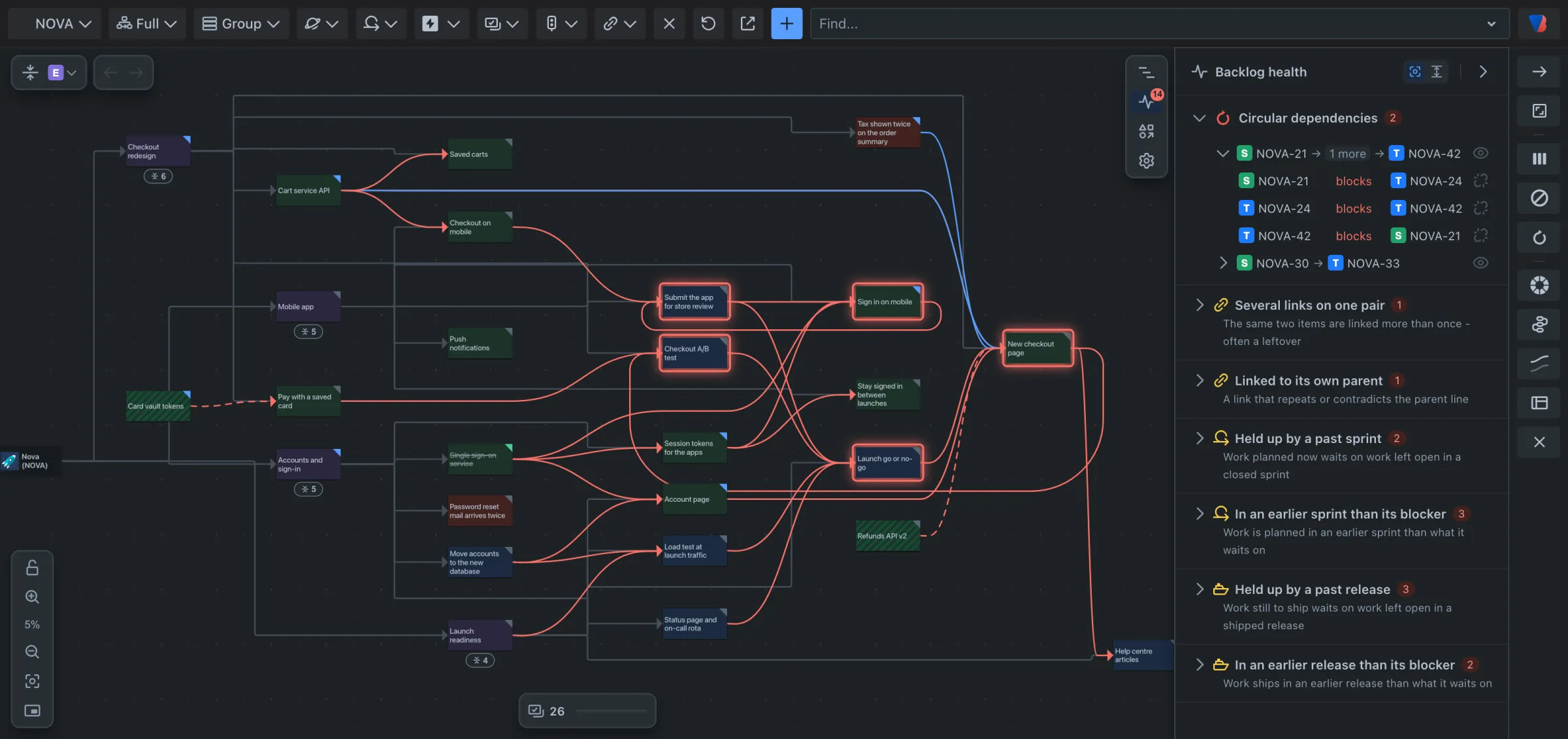
- At the right of the map, click the second icon, Backlog health. A red number on the icon is how many problems were found. No number means none.
- Look under Circular dependencies. Each row is one circle, named by its first and last work item, for example NOVA-21 → 1 more → NOVA-42.
- Point at a row. The work items in that circle light up on the map with a red outline.
Look at it
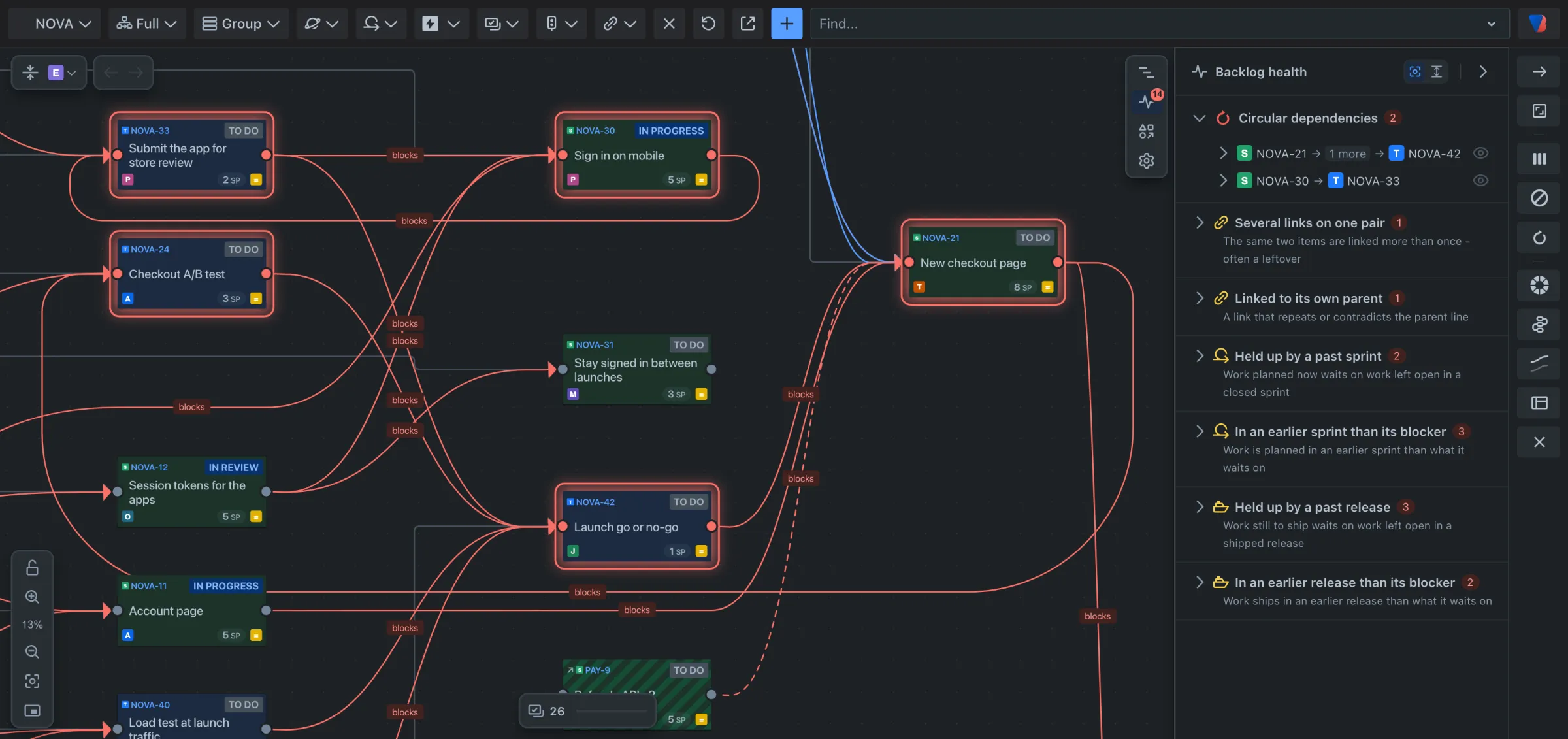
- Click the row. It opens to list each link in the circle, such as NOVA-21 blocks NOVA-24, and the map moves to those work items.
- Read the links in order. One of them is usually wrong: entered the wrong way round, or left over from an earlier plan.
Fix it
- Decide which link should not be there.
- At the right of that link’s row, click the icon to break the circle there. Its tooltip names the link it will remove, for example Break the cycle here: remove NOVA-42 blocks NOVA-21.
- Confirm. The link is removed in Jira, and the circle leaves the list.
To change your mind before confirming, choose Keep this link.
If part of the circle is hidden
- When a circle is inside a folded card, that card turns red. Click the row to open it.
- When a link type in the circle is hidden by the link type filter, Backlog health says so, with a Show link to bring it back.
See only the circles
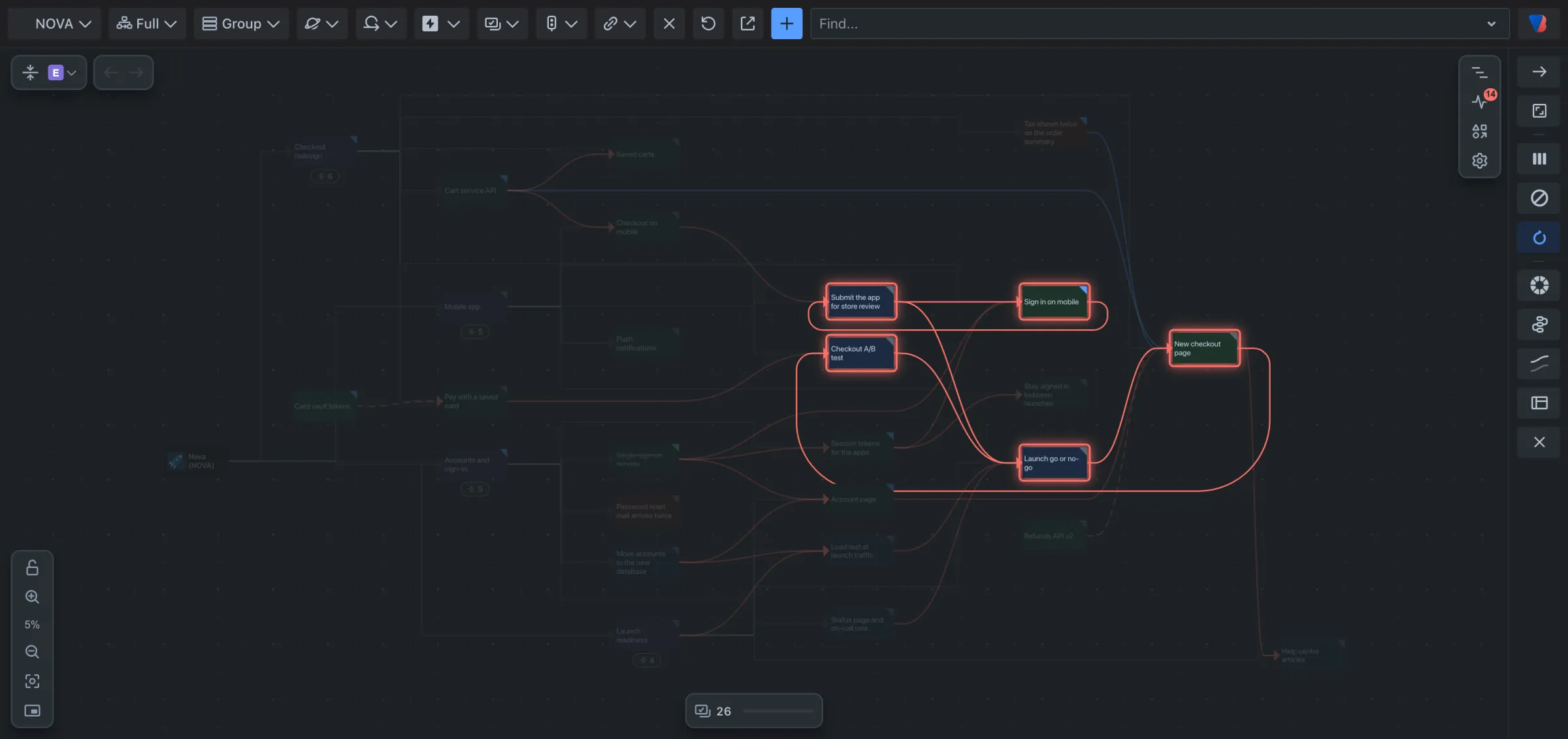
- In the layout settings at the far right, click Show circular dependencies. Everything that is not part of a circle fades.
- Click it again to bring the rest back.
Good to know
- You can only remove a link from work items you are allowed to edit in Jira.
- Backlog health checks everything that was loaded, including folded work. The other checks it runs are in the Backlog health reference.