Guides
See what to do first
Lay the work out in the order its dependencies allow, and highlight the unfinished work that is holding other work up.
When work depends on other work, the order matters. Visual Backlog can lay the map out in that order and pick out what is holding things up. It shows the order the links imply. It does not schedule work or give dates.
Lay the work out in waves
- Click the mode menu in the toolbar. It shows the current mode, usually Full.
- Choose Dependencies.
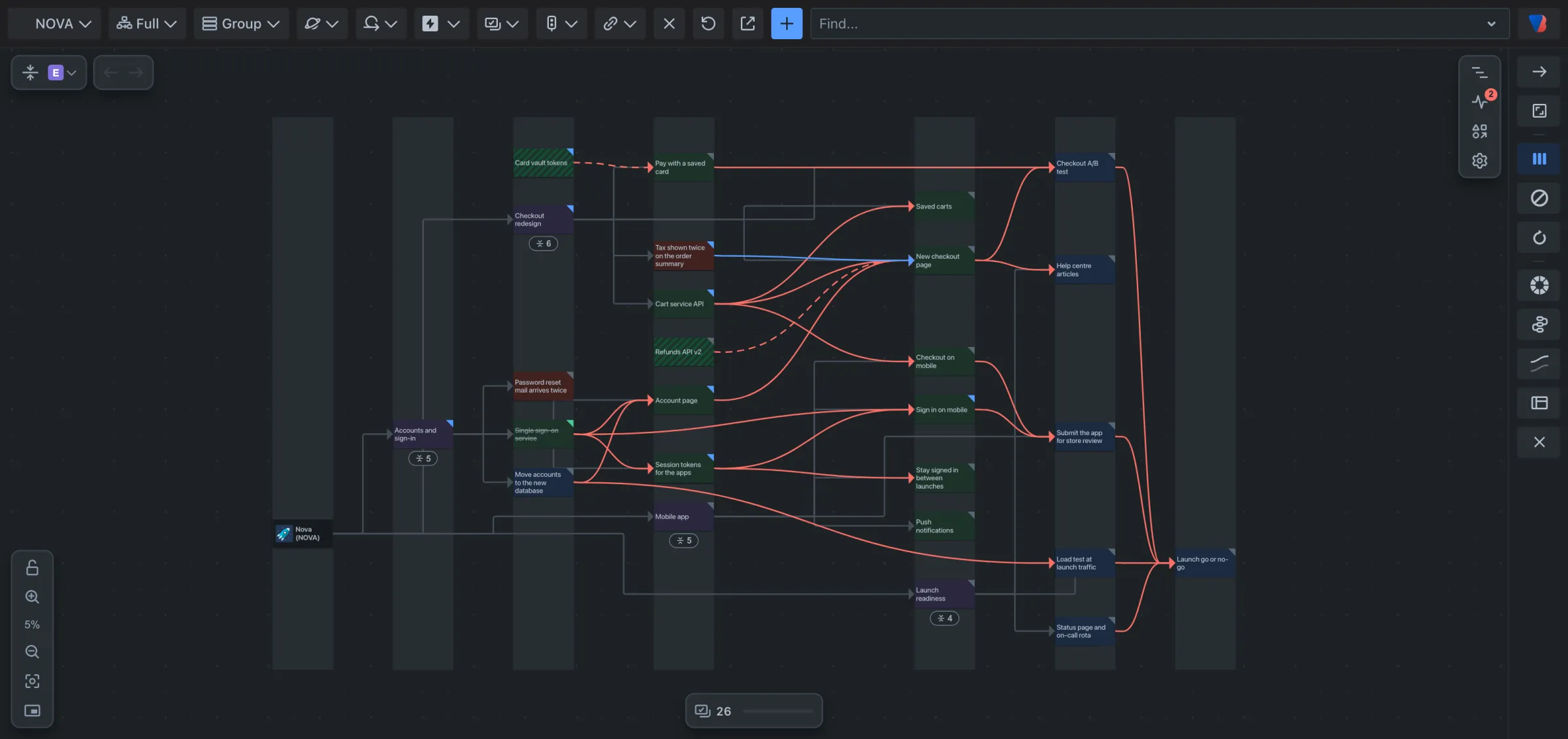
The map now shows only the dependencies, in waves from left to right: first the work that waits on nothing, then the work that those unblock, and so on.
Show the order as columns
- In the layout settings at the far right, click Toggle prioritization tracks, the icon of three bars.
Each column is one track. Work in a track waits only on work in the tracks to its left.
Highlight what is holding work up
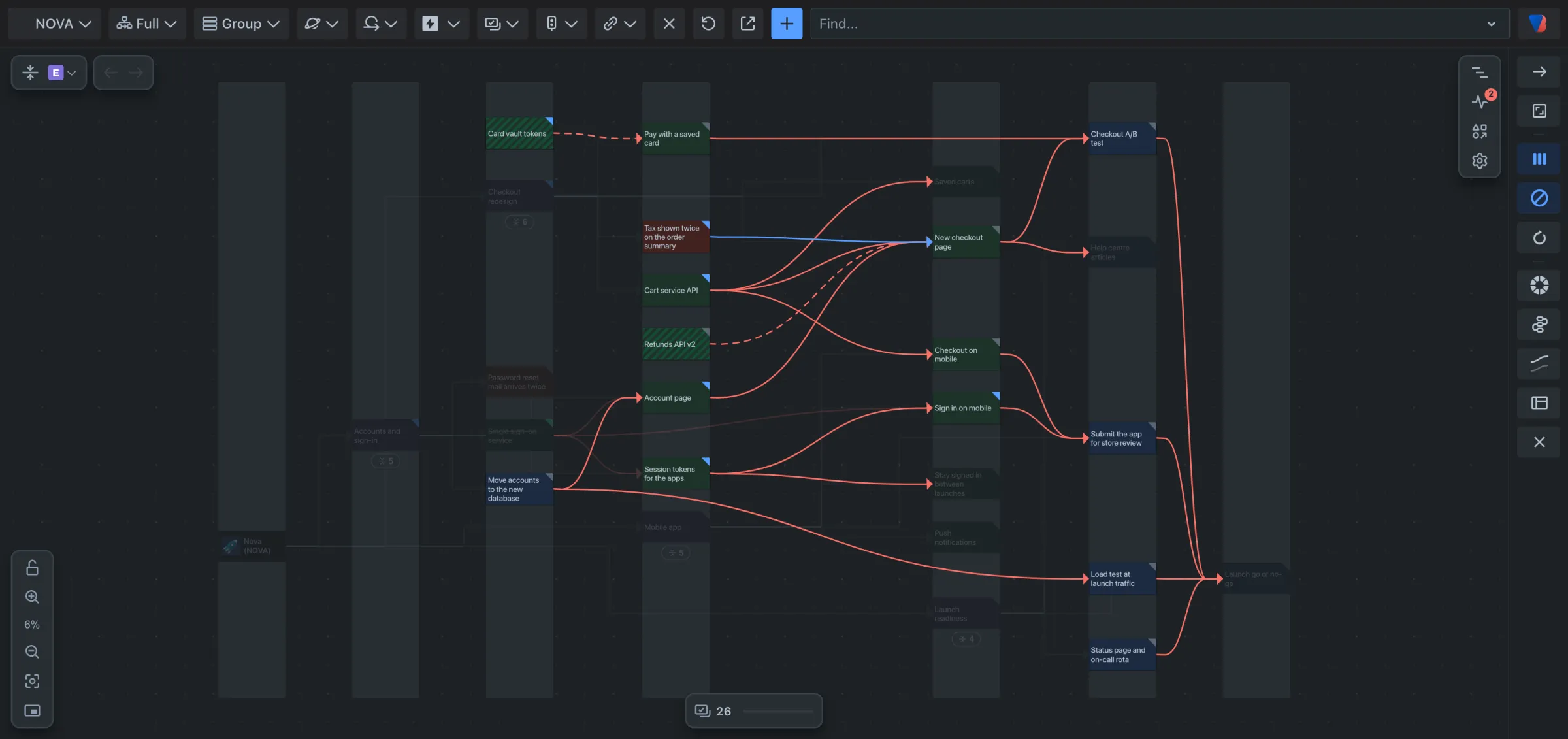
- In the layout settings, click Toggle blockers highlighting, the icon of a circle with a line through it.
Work that is not done and that other work is waiting on stays bright. Everything else fades.
Turn them off
- Click the same button again.
Good to know
- Only dependencies count here: Jira’s Blocks link, or the link types your space counts as dependencies.
- A circular dependency has no first item, so fix those first. See Find and fix a circular dependency.