Reference
Cards and lines
What every part of a card and every kind of line and outline on the map means.
The Legend panel shows the same information using what is on your own map.
Cards
| Part | Meaning |
|---|---|
| Colour of the card | The work type. In the sample space: story green, task blue, epic purple, bug red. |
| Coloured corner, top right | The status: grey to do, blue in progress, green done. |
| Title struck through | The work item is done. |
| Stripes | The work item is in another space. |
| Key and status label | Shown when zoomed in. |
| Round badge with a letter or picture | The assignee. |
| Number followed by SP | Story points. |
| Ring and a count such as 1/5 | On a work item that contains others: how many of them are done. |
| Badge with a number under the card | Work is folded inside; the number is how many work items. Click to unfold. |
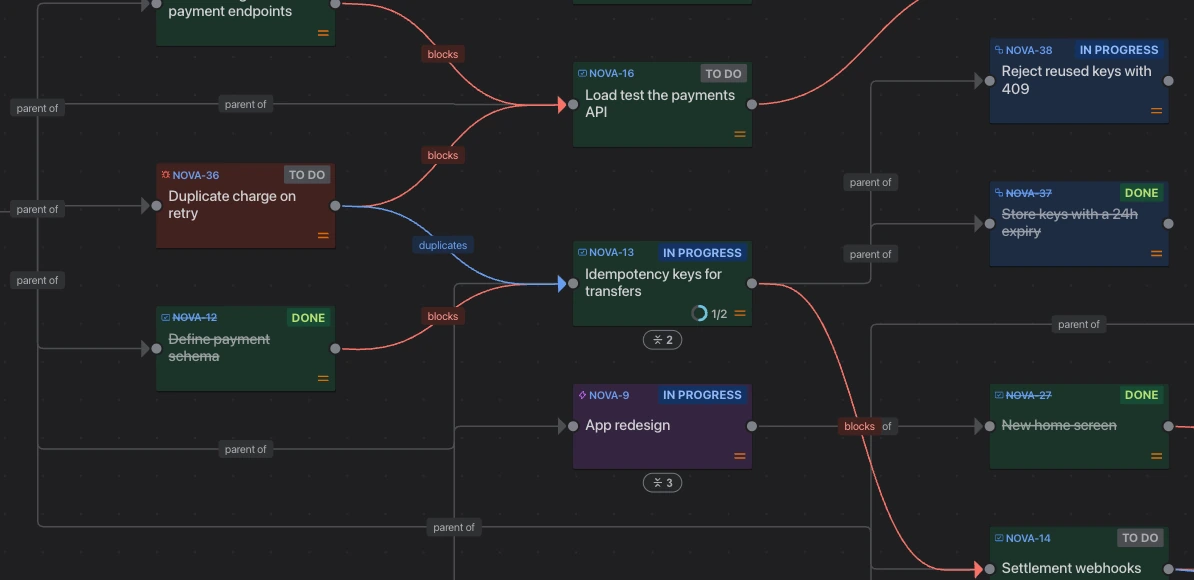
As you zoom out, cards simplify to their colour, corner and title, then to shapes.
The card’s colour can stand for the status instead of the work type; see Color Scheme in the layout settings.
The icons above a selected card
Click a card and icons appear above it.
| Icon | What it does |
|---|---|
| Open in Jira | Opens the work item in Jira. |
| Show what this is waiting on | Draws the map of this work item and everything that has to be finished before it. |
| Add a child work item | On an epic: creates a work item inside it. |
Lines
| Line | Meaning |
|---|---|
| Red, with an arrow | A dependency. The work item at the start has to be finished before the one the arrow points at. |
| Blue, with an arrow | A relates to link. |
| Grey | What sits inside what: space to epic, epic to story. |
| Other colours | Other link types your site uses. The Legend lists each in its colour. |
| Small label on a line | The link type. Click it to change the type or remove the link. |
Outlines
| Outline | Meaning |
|---|---|
| Red | The work item is part of a circular dependency. |
| Yellow, with a star | The work item the map is about, when showing what one work item is waiting on. |
| Blue | The card you just jumped to. |
Fading
When you point at a row in a panel, hold Shift over a card, or turn on a highlight in the layout settings, everything else fades instead of disappearing, so the map keeps its shape.