Reference
Layout settings
The column of buttons at the far right of the map that change how the map is drawn for you: direction, view, tracks, highlights, colours and lines.
The column at the far right of the screen changes how the map is drawn. These are your own preferences: they do not change what anyone else sees, and they are not steps for Back and Forward. Click the arrow at the top of the column to show each button’s name beside it.
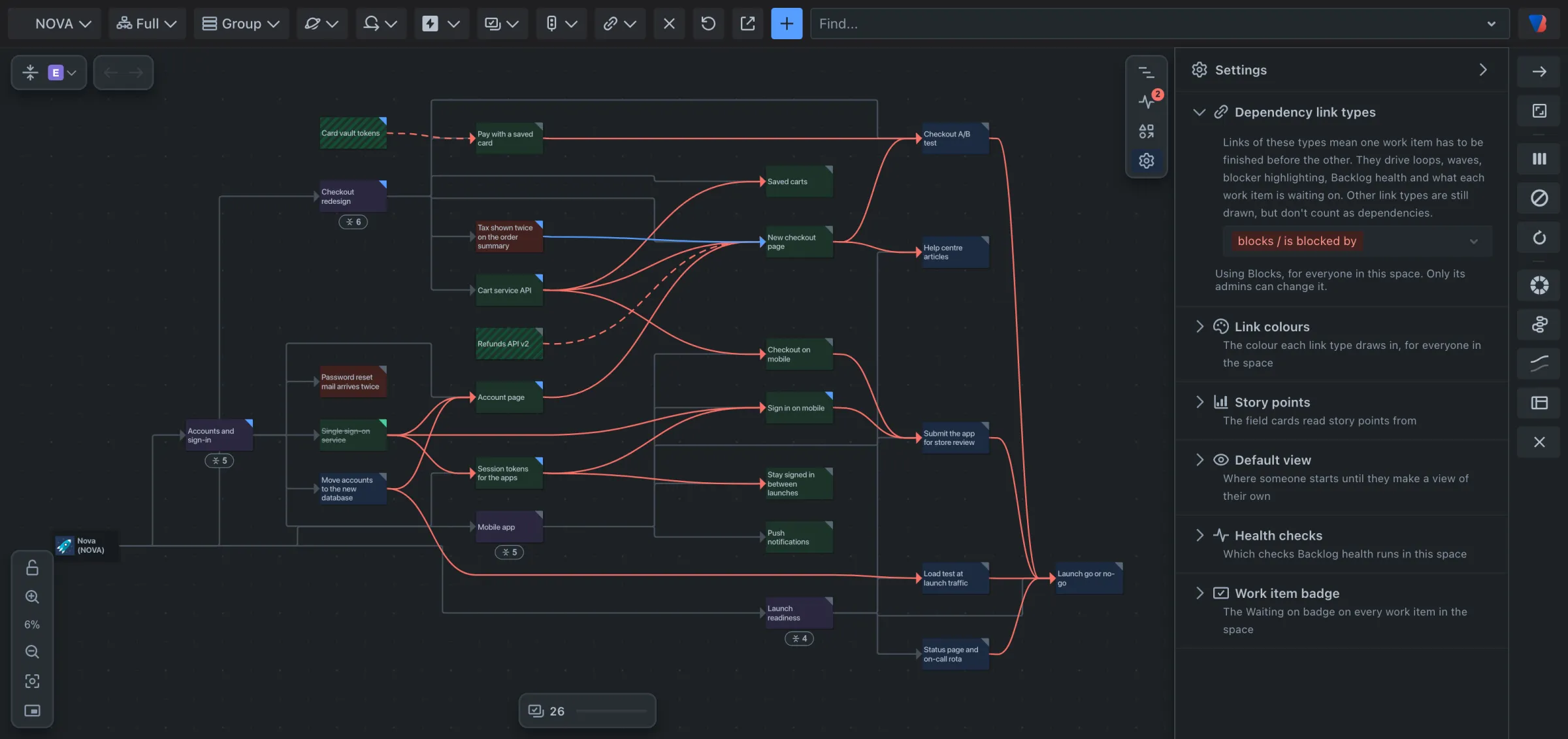
From top to bottom:
| Setting | What it does |
|---|---|
| Layout direction | Draws the map left to right or top to bottom. |
| View mode | Switches between the normal view and a compact view with larger cards set closer together. |
| Prioritization tracks | Puts the work in columns in the order its dependencies allow. |
| Highlight blockers | Keeps bright the unfinished work that other work is waiting on, and fades the rest. |
| Show circular dependencies | Keeps bright only the work items in a circular dependency. |
| Color Scheme | Colours cards by work type (Issue Type) or by status (Status Category). |
| Edge Line | The shape of the lines: Bezier, Step or Straight Line. |
| Dim parent links | Fades the grey lines of the hierarchy so the links stand out. |
| Layout Strategy | How cards are placed: Simple or Network Simplex. Try the other if a map is hard to read. |
| Reset | Puts every layout setting back to its default. |
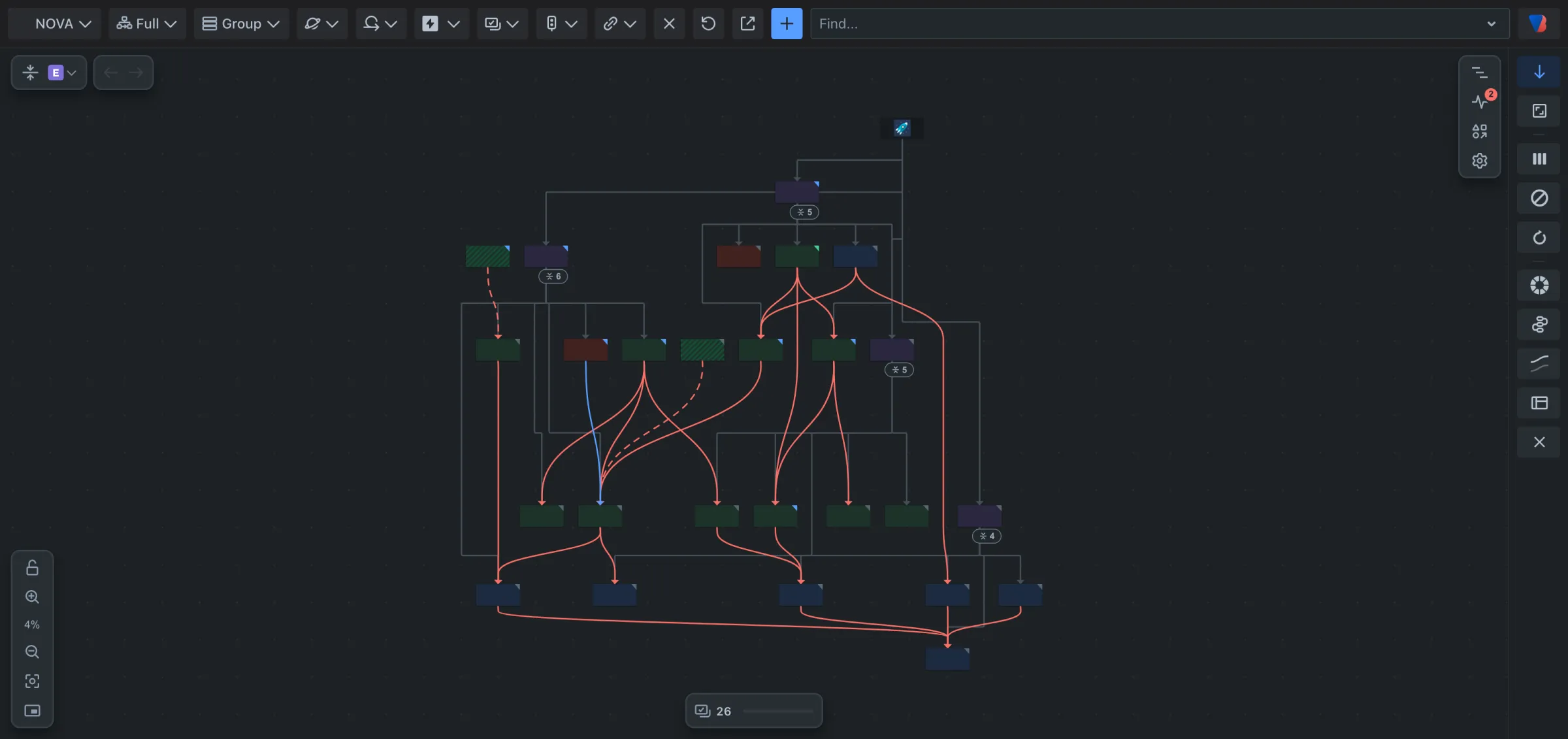
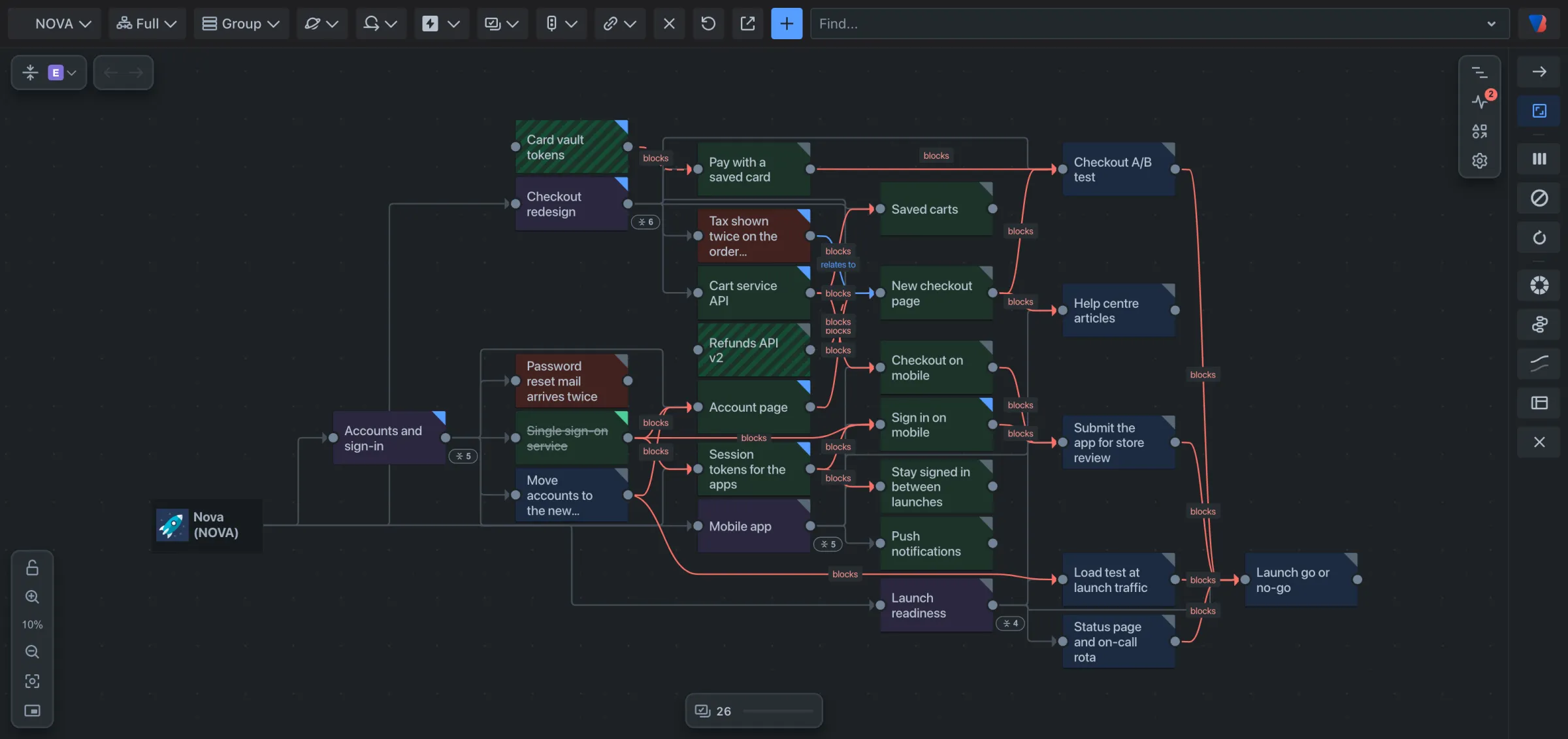
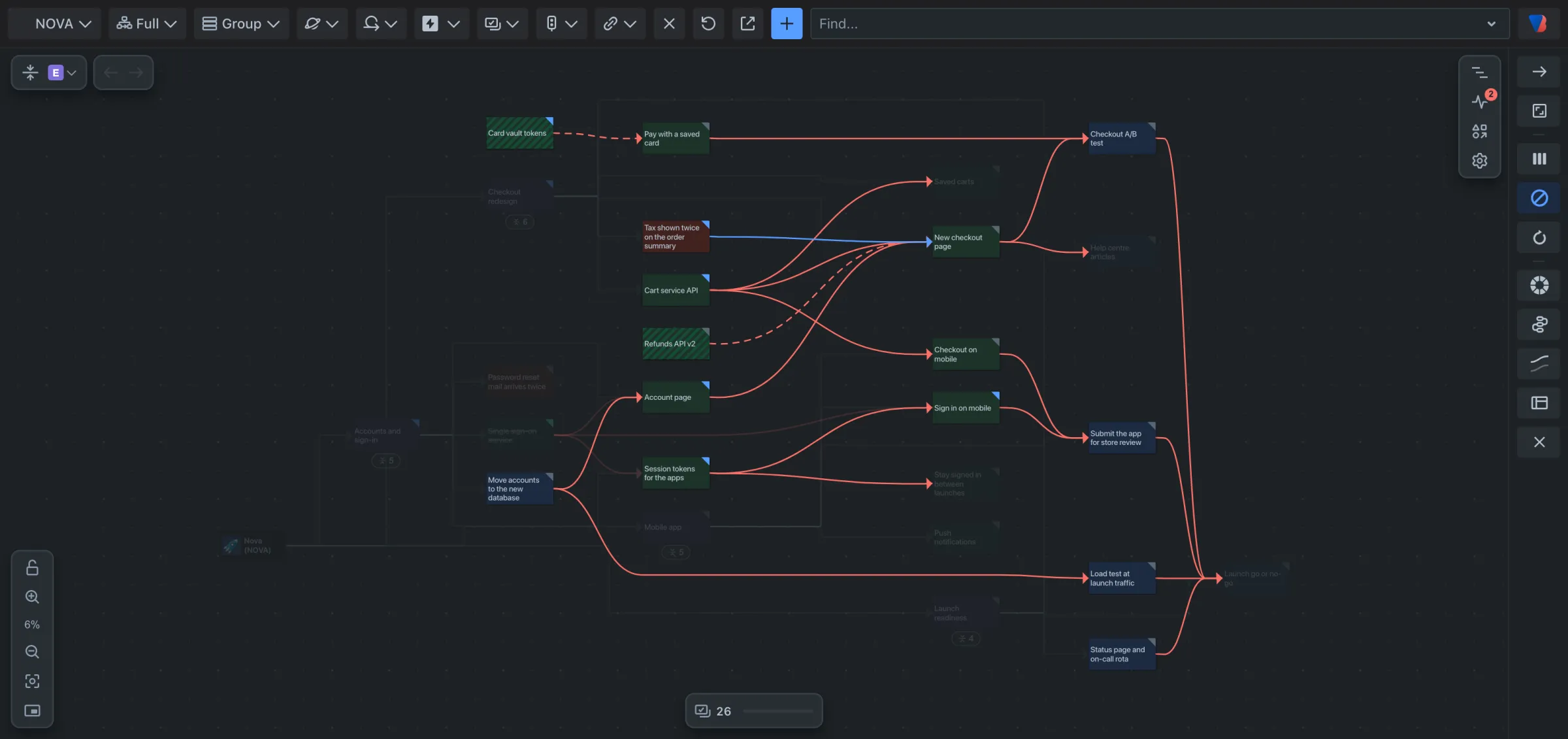
How to use tracks and blockers together is in See what to do first.