Guides
Save a map and share it
Build a map from work in several spaces on Visual Backlog’s own page, save it as a view, share it with a space or your whole site, and send a link to it.
A map inside a space shows that space. Visual Backlog also has a page of its own in Jira, outside any space. There you can map work from several spaces, save the map as a view with its filters and layout, and share it with your team.
Open Visual Backlog’s page
- In Jira’s left sidebar, open Apps.
- Choose Visual Backlog.
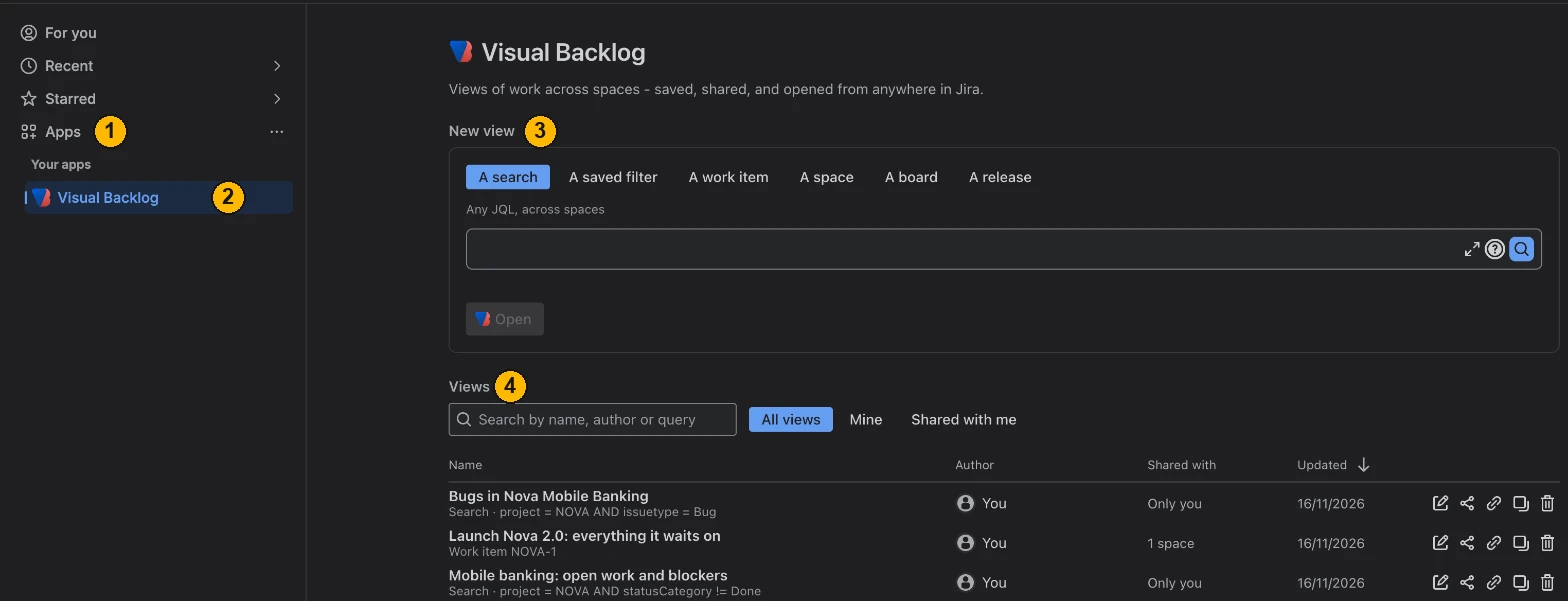
The page has three parts: New view to start a map, Views for the maps you can open, and Opened lately for the ones you looked at last.
Start a new map
- Under New view, choose what the map shows:
- A search: any JQL, across spaces.
- A saved filter: one of the filters you can open.
- A work item: everything it waits on.
- A space: all of a space’s work items.
- A board: what its filter finds.
- A release: its work items, in every space that has a release of that name.
- Type your JQL, or type in the box and pick the filter, work item, space, board or release from the list.
- Click Open.
The map opens with the same toolbar and panels as in a space. Set it up the way you want: filters, grouping, layout, what is folded.
Save it as a view
- Click Save view… at the top of the page.
- Type a name, for example Payments - what blocks Q4.
- Click Save.
A saved view is private until you share it. It keeps the map’s source, filters and layout, so it opens the way you left it.
Save changes to a view
Changes to a view are kept only when you save them.
- Change the map.
- Click Save. When nothing has changed since the last save, the button says Saved.
To keep your changes as a separate view and leave the original as it is, click Save as… instead and give the copy a name.
If you leave a view with unsaved changes, Visual Backlog asks Leave without saving? Click Stay to go back, Discard changes to leave, or save them first.
Share a view
- Open the view and click Share at the top of the page.
- In Share with, choose who:
- Space: everyone who can open a space. Type to find it.
- Everyone on this site: everyone on your Jira site.
- Person or Group, where your site has them (see below).
- Choose Can view or Can edit. Viewers can open the view; editors can also change it and save.
- Click Add. Add more people or spaces the same way.
- Click Save.
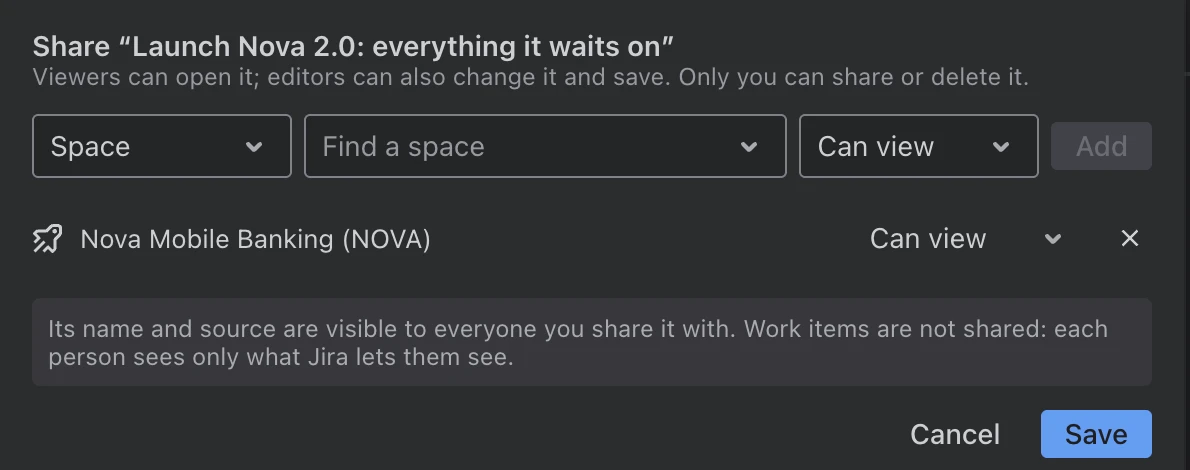
To stop sharing with someone, remove them from the list in the same box and click Save. Only the view’s owner can share it or delete it.
Sharing a view shares its set-up, not the data. Everyone sees only the work items Jira lets them see.
Send a link
- Click Copy link at the top of the page.
- Paste the link in a chat, an email or a work item.
The link opens exactly what you were looking at. A link to a saved view opens for whoever the view is shared with. You can copy a link from any map, saved or not.
Find a view again
- Open Visual Backlog’s page from Apps, or click All views at the top left of a view.
- Under Views, type in the search box. It searches views by name, author or query.
- Choose All views, Mine or Shared with me to narrow the list.
- Click a view’s name to open it.

Shared with says who else can open each view: Only you, Everyone, or the people, groups and spaces it is shared with. On a view shared with you it says You can view or You can edit.
Rename, duplicate, share or delete a view
Each row in Views has its actions at the end:
- Rename a view you can edit.
- Duplicate a view to start a new one from it.
- Share a view you own.
- Copy link to any view in the list.
- Delete a view you own. You are asked to confirm first. Deleting removes it for everyone it is shared with.
You can also rename an open view by clicking its name at the top of the page, and delete it with Delete view beside Copy link.
Good to know
- Views live on Visual Backlog’s own page. The map inside a space is not saved as a view.
- A view only shows work items the person opening it is allowed to see.
- What Visual Backlog stores for views is described in Permissions and data.