Trace every dependency behind a deliverable, across teams
Jira shows a work item’s direct links. Visual Backlog follows them all the way down: every blocker, the blockers behind those, and the teams they belong to, in one picture.
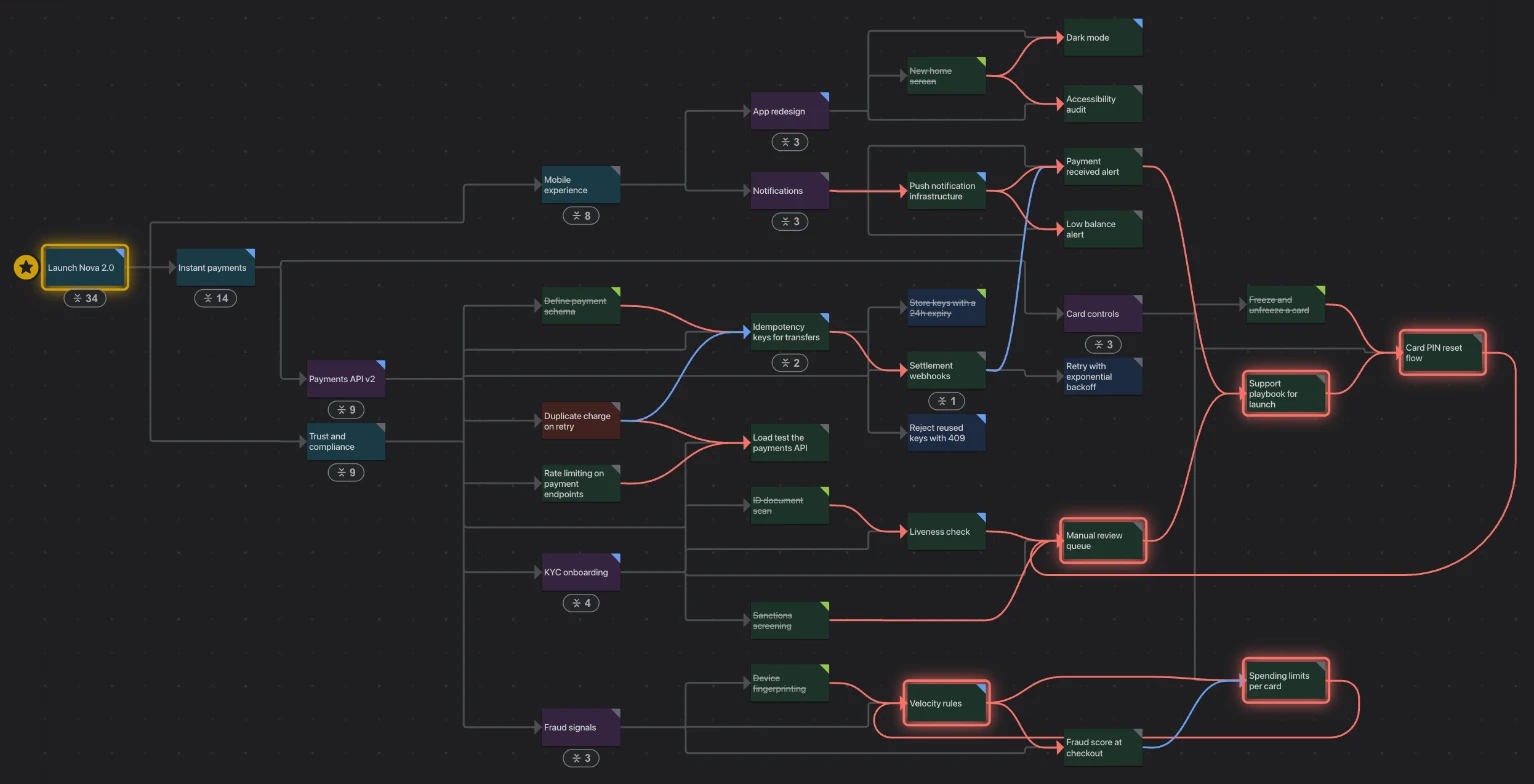
Everything “Launch Nova 2.0” is waiting on, across its epics and the teams behind them.
Ask “what has to happen before this can ship?” and Jira gives you part of the answer. A work item’s page lists its direct links: the two or three items that block it. But each of those has blockers of its own, owned by other teams in other spaces, and those have blockers too. The real answer is a chain that can run five or ten steps deep, and in Jira you can only follow it by opening work item after work item.
Visual Backlog follows the whole chain for you. Pick one deliverable, an epic, a feature or a single story, and it draws everything that stands between it and done:
- the work inside it (its stories and sub-tasks),
- every work item that blocks any of that, in any space (blocks here means Jira’s Blocks link, or any other link type your space counts as a dependency, such as depends on),
- and whatever blocks those, step by step, until nothing is left.
Now you can see the blocker three teams away before it becomes the reason you slip, and point to it in a planning meeting instead of describing it.
How to use it
- Open Visual Backlog in any space.
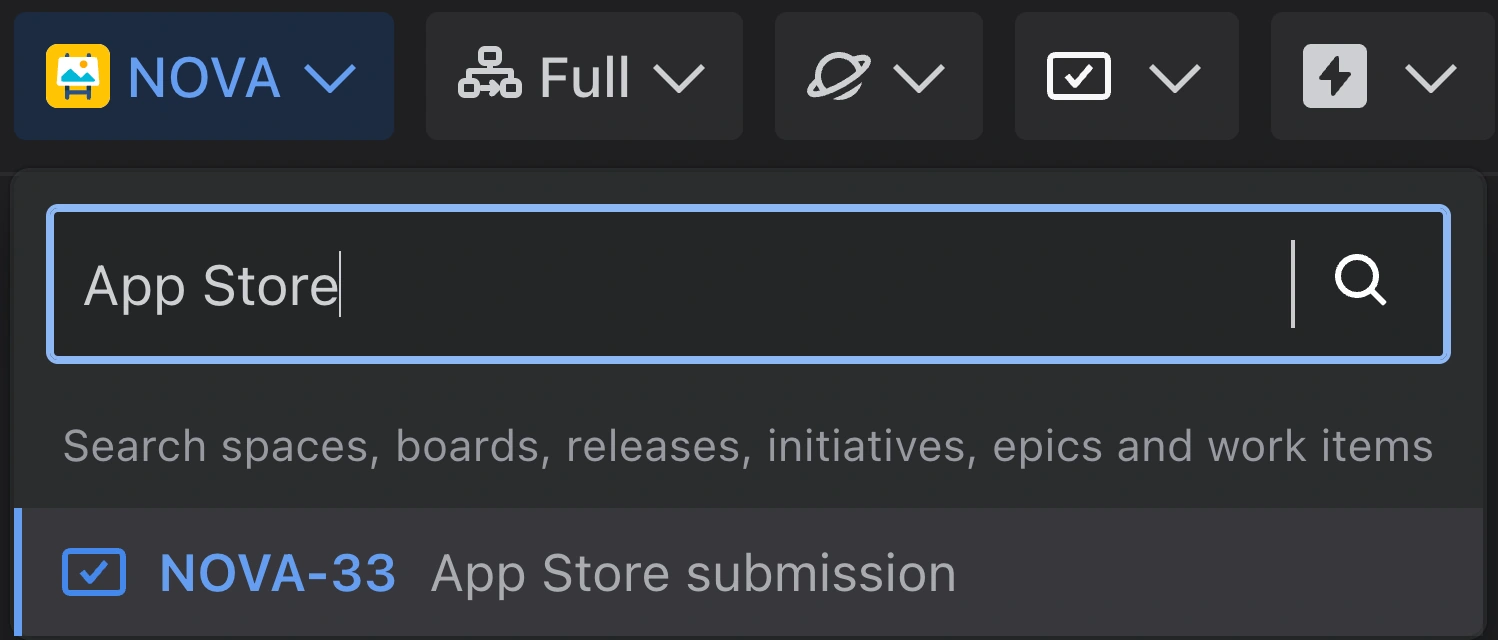
- Click the source menu at the top left of the toolbar (it shows where the map’s work comes from, usually the space’s name), and start typing the work item’s name or key.
- Pick the work item. The map now shows only that work item and everything it is waiting on.
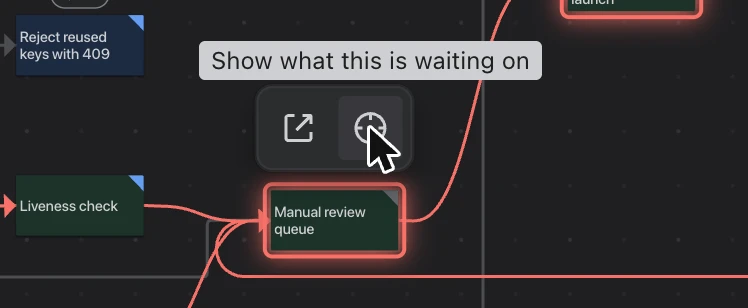
You can also start from a card already on the map: click the card, then the target icon above it, Show what this is waiting on.
Reading the map
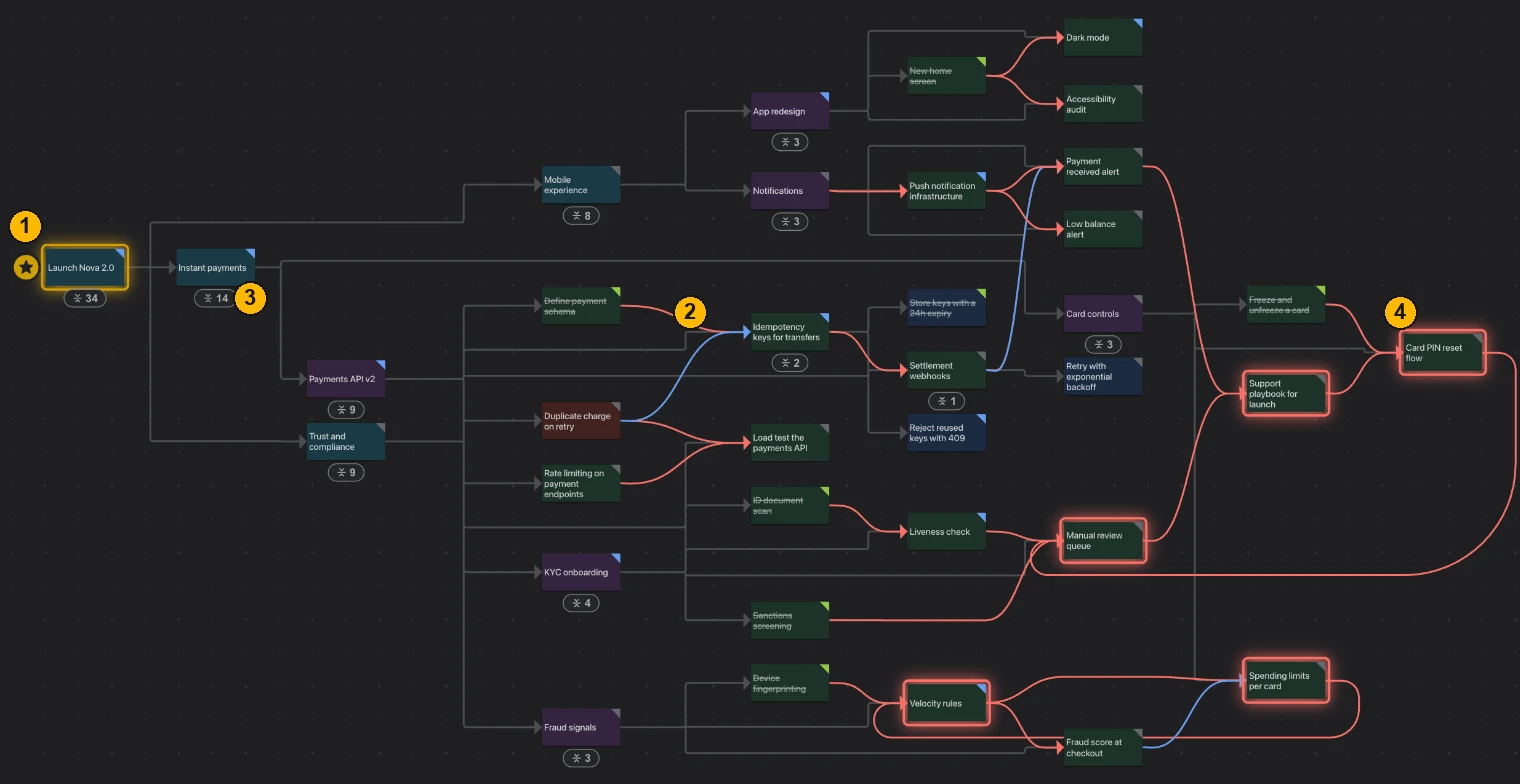
- The work item you picked, with a star beside it.
- A red line links two work items where the first has to be finished before the second can be done. Grey lines show what sits inside what, for example the stories inside an epic.
- A collapsed card. The number says how many work items are inside it; click it to open it.
- A red outline marks a circular dependency: work items that wait on each other, so none of them can start. See Catch broken dependencies before they stall your plan.
Good to know
- You only ever see work items you are allowed to see in Jira.
- Which links count as “blocking” can be set for your space. Most teams use Jira’s standard Blocks link; see Settings for everyone in a space.