Group the map into lanes, and go back to where you were
Put the map into lanes, one for each team, sprint, epic or release, and see which dependencies cross from one lane to another. Back and Forward take you through the maps you have looked at.
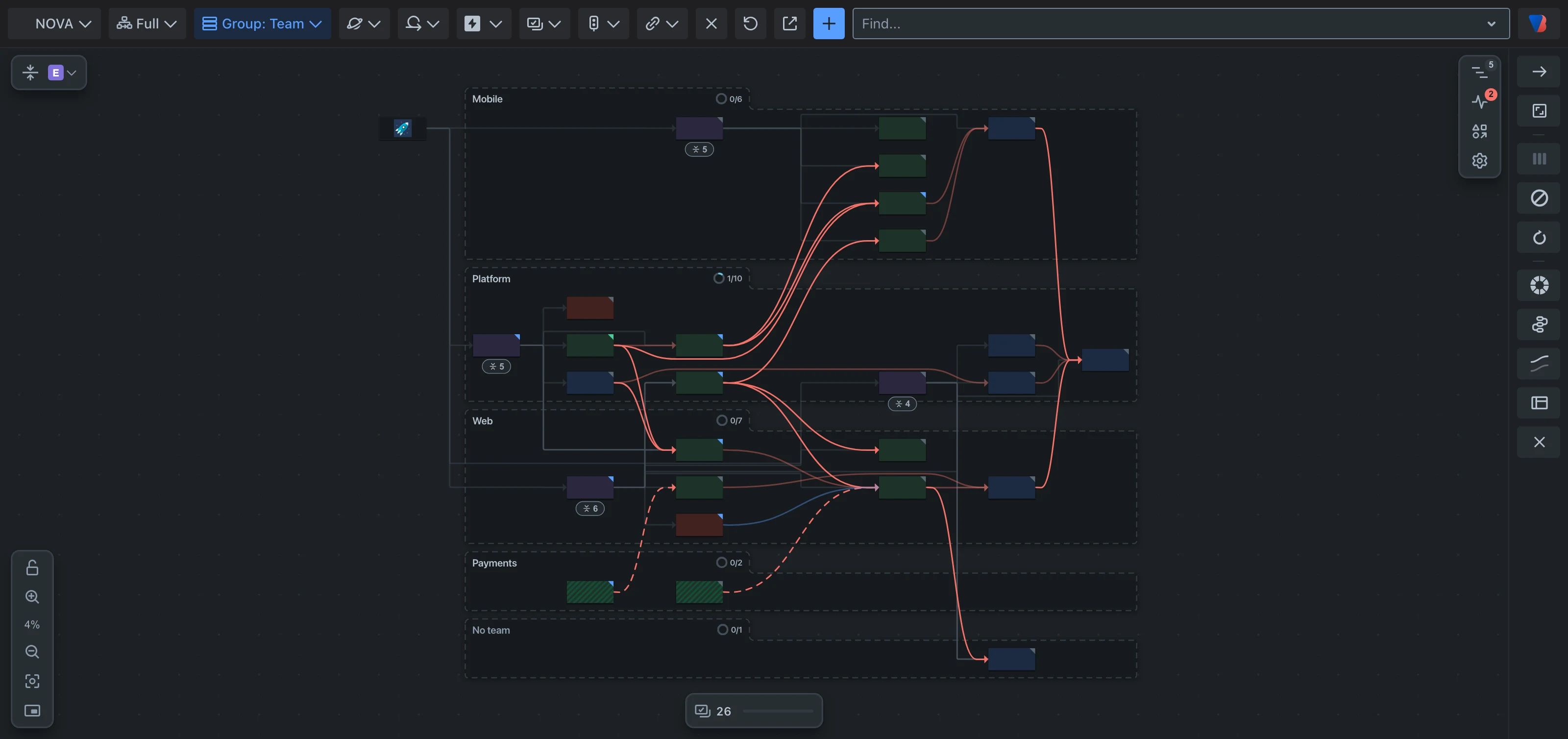
One space grouped by team. Each team has a lane, and the links run between them.
Two additions to the map, both small to learn.
Group the map into lanes
A dependency between two stories in the same team is routine. A dependency between two teams, or between this sprint and the next one, is where plans go wrong. Until now the map drew every card in one area, so you had to read each card to know whose it was or when it was planned.
Group puts the same map into lanes. Choose what a lane stands for:
- Team or Assignee: who does the work.
- Sprint or Release: when it is planned, with the lanes in date order.
- Epic, Status or Space.
The cards and the links are the same ones as before. What changes is where the cards sit, so a line that leaves one lane and enters another is a dependency between two teams, two sprints or two releases.
How to use it
- Open Group in the toolbar at the top of the map.
- Choose what to group by. The map is redrawn in lanes.
- Choose None to go back to the map as it was laid out.
Each lane has a heading with its name and how much of its work is done. Work that belongs to no lane, such as a story with no team, gets a lane of its own at the bottom, so nothing disappears.
Back and Forward
Looking into a dependency usually means leaving the map you were on: you open what one work item is waiting on, switch to a release, or change a filter. Until now, getting back meant setting the earlier map up again by hand.
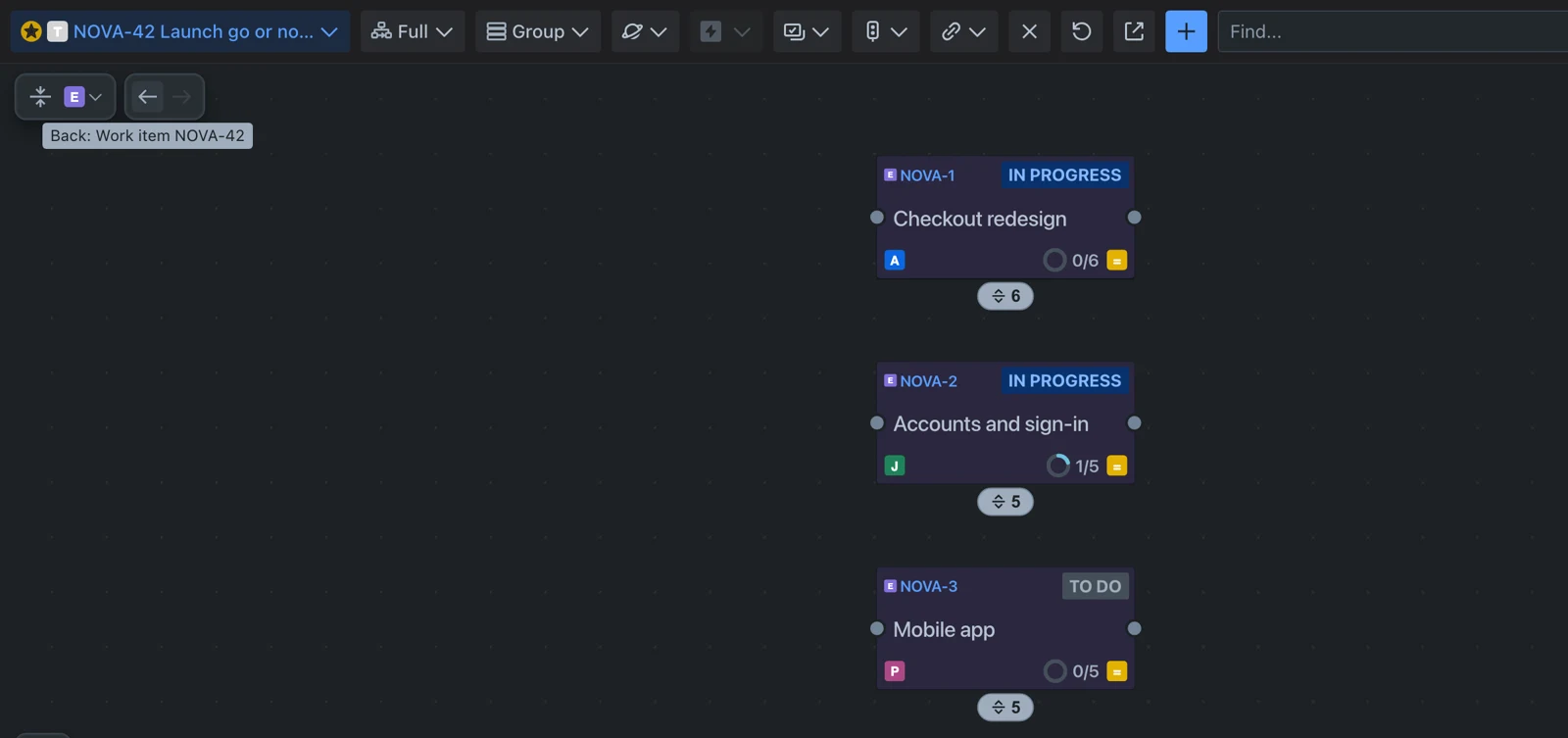
Two arrows at the top left of the map, Back and Forward, now take you through the maps you have looked at, like the arrows in a browser. Point at one and it says where it leads.
Good to know
- Back returns you to where you were looking: the same part of the map, with the same cards collapsed and the same panel open.
- The browser’s own back and forward arrows do the same thing.
- How the map is drawn, such as the grouping or the level it is collapsed to, is your preference and not a step. Going back leaves it as you set it.