Save a map and share it with your team
Build a map once, save it with a name, and share it with your team the way you share a Jira filter. Everyone sees only the work they are allowed to see.
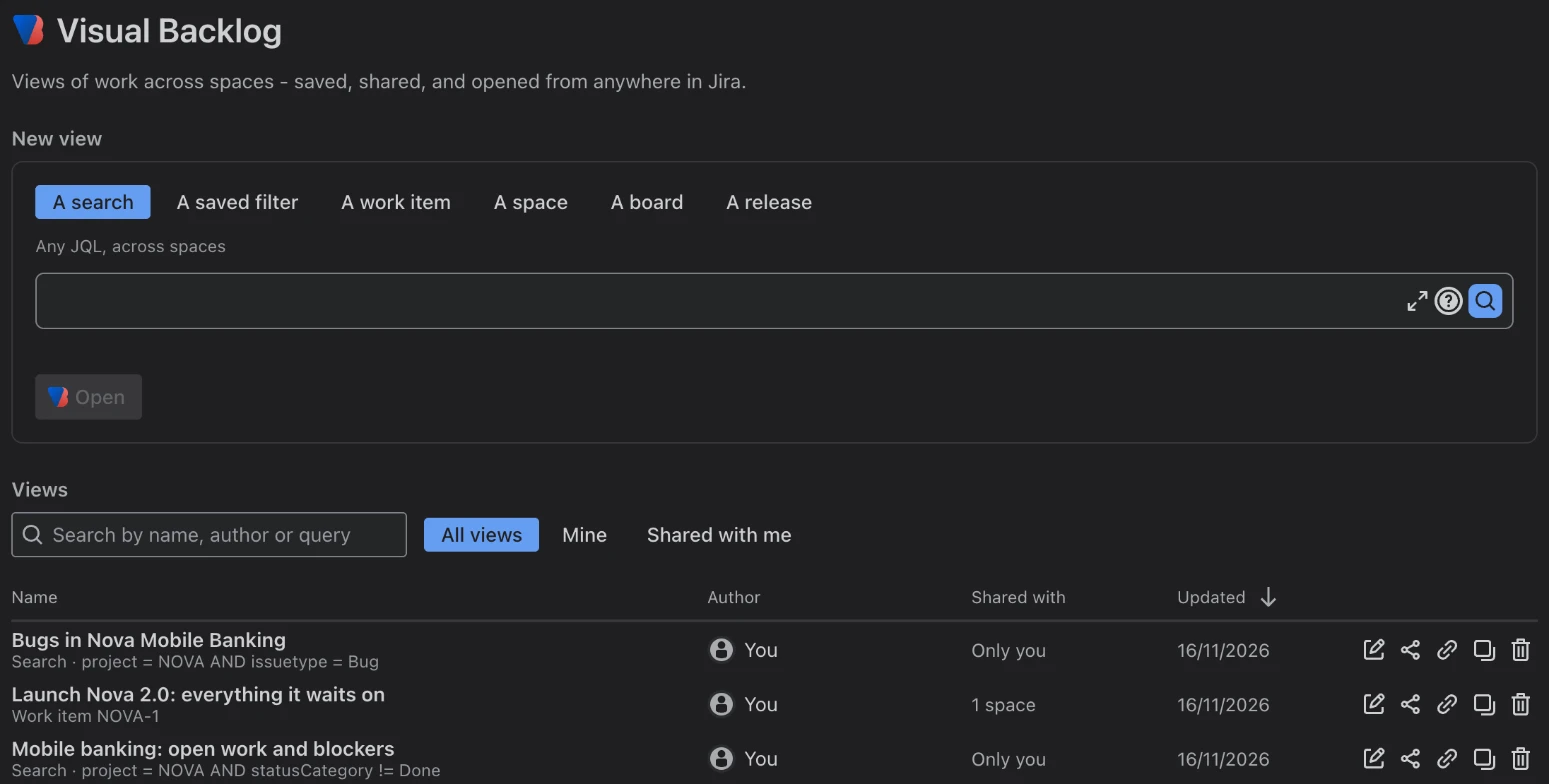
The Visual Backlog page in Jira’s Apps menu: start a new map, or open one your team saved.
Setting up a useful map takes a few choices: what to show, which filters, how much to collapse. Until now you made them again each time, and the map lived inside one space. Teams rarely work in just one.
Visual Backlog now has a page of its own in Jira, outside any space, where you can build a map from work in several spaces, save it, and share it.
Where to find it
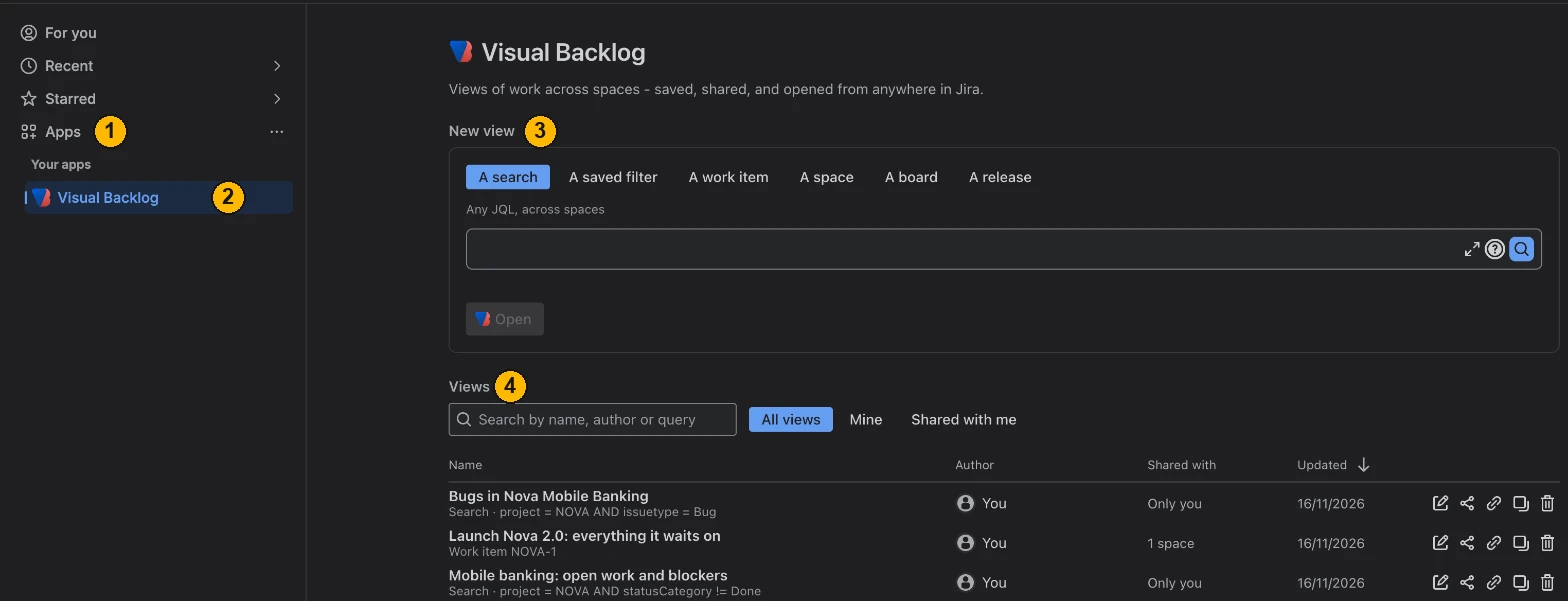
- In Jira’s left sidebar, open Apps.
- Choose Visual Backlog.
- Under New view, start a new map from a search, a saved filter, a work item, a space, a board or a release.
- Under Views, find the maps you and your team saved.
Save a map
- Start a new map and set it up the way you want: filters, layout, what is collapsed.
- Click Save view at the top right and give it a name.
- Later changes are not saved until you click Save again. If you leave with unsaved changes, you are asked whether to keep them.
A view remembers everything about the map. Open it tomorrow and it looks exactly as you left it.
Find a view again

- Search by a view’s name, its author, or the search it is built on.
- Show all views, only yours, or only those shared with you.
- Shared with says who else can open each view.
- On each row: rename, share, copy a link, duplicate or delete the view.
Click a column heading to sort by it.
Share a view
Click the share icon on a view’s row. Share it with everyone in a space, or with everyone on your Jira site, and choose whether they Can view it or Can edit it. Only you, as its owner, can share or delete it.
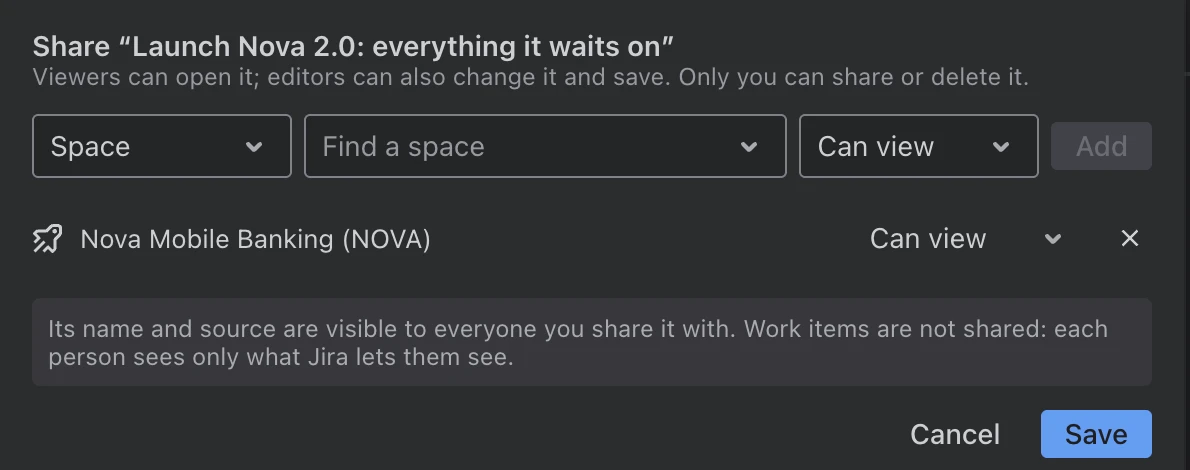
Sharing a view shares the set-up, not the data. Everyone you share it with sees only the work items Jira lets them see.
Send a link
Copy link gives you a link to exactly what you are looking at: the same work, the same filters, the same layout. Paste it in a chat or a ticket, and whoever opens it sees the same map. You can copy a link from any map, saved or not.
Every step, in the documentation: Save a map and share it.