See what is blocking a work item without leaving it
Every work item now says whether anything is blocking it, and can show what. Boards and Jira searches open in Visual Backlog in one click.
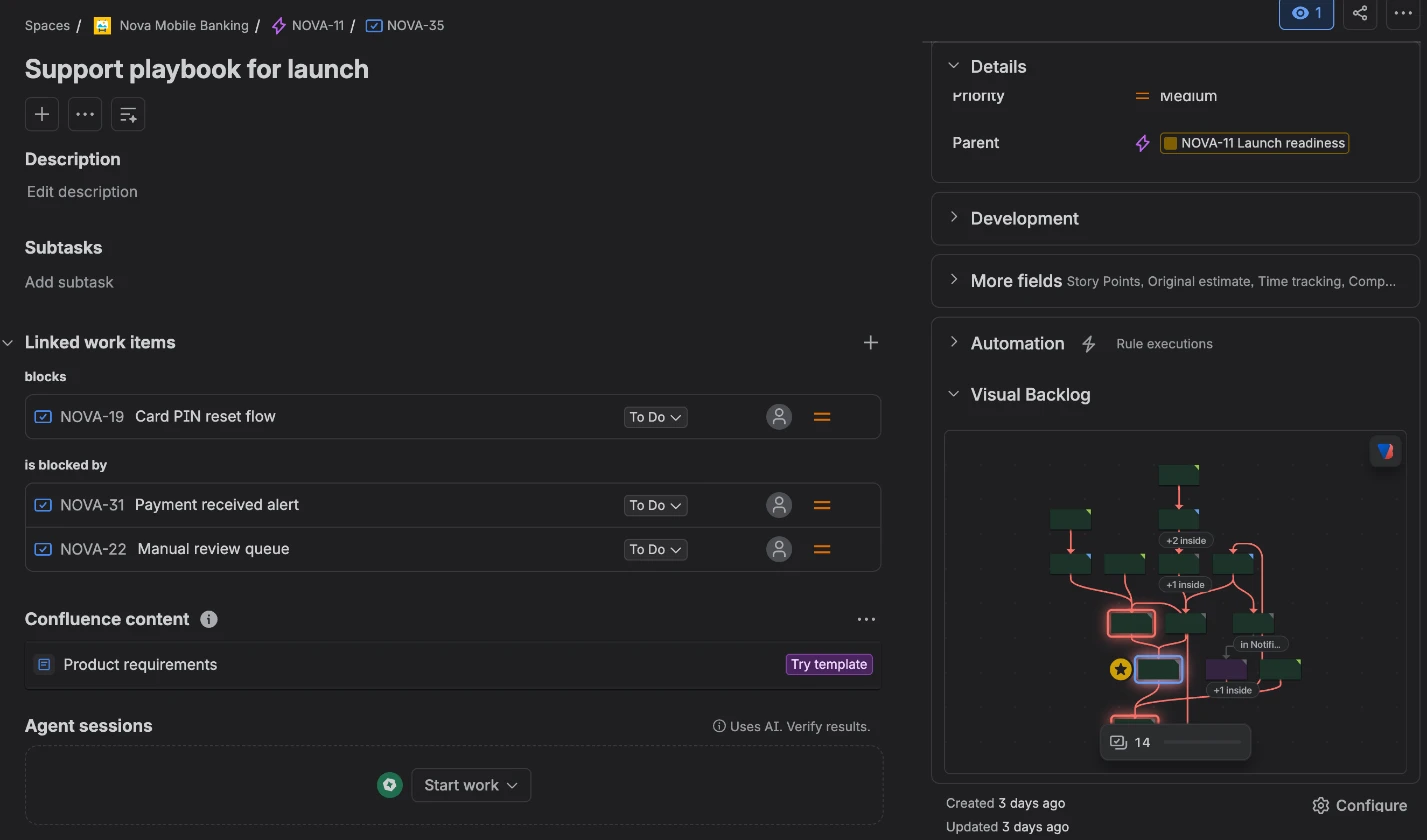
A work item with the Visual Backlog panel open.
Most questions about blockers come up while you are looking at a work item in Jira, not at a map. So the answer is now right there, and Visual Backlog is one click away from wherever you are in Jira.
Is it blocked? A glance tells you
Every work item now has a Visual Backlog panel among its details, labelled Dependencies. Even before you open it, it tells you whether the work item can start:
- Waiting on 2 in red means two unfinished work items are blocking it.
- Clear in green means nothing is.
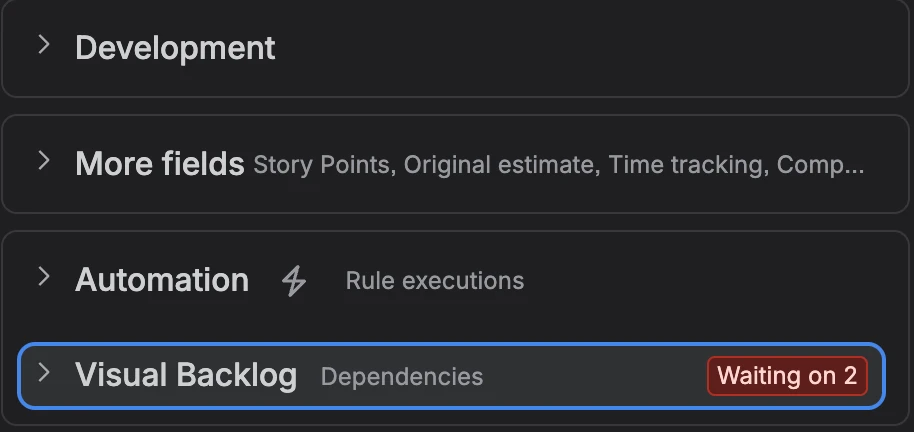
Open it to see what, and why
Open the panel to see a small map of what this work item is waiting on, and what that is waiting on in turn, right beside the work item’s usual details.
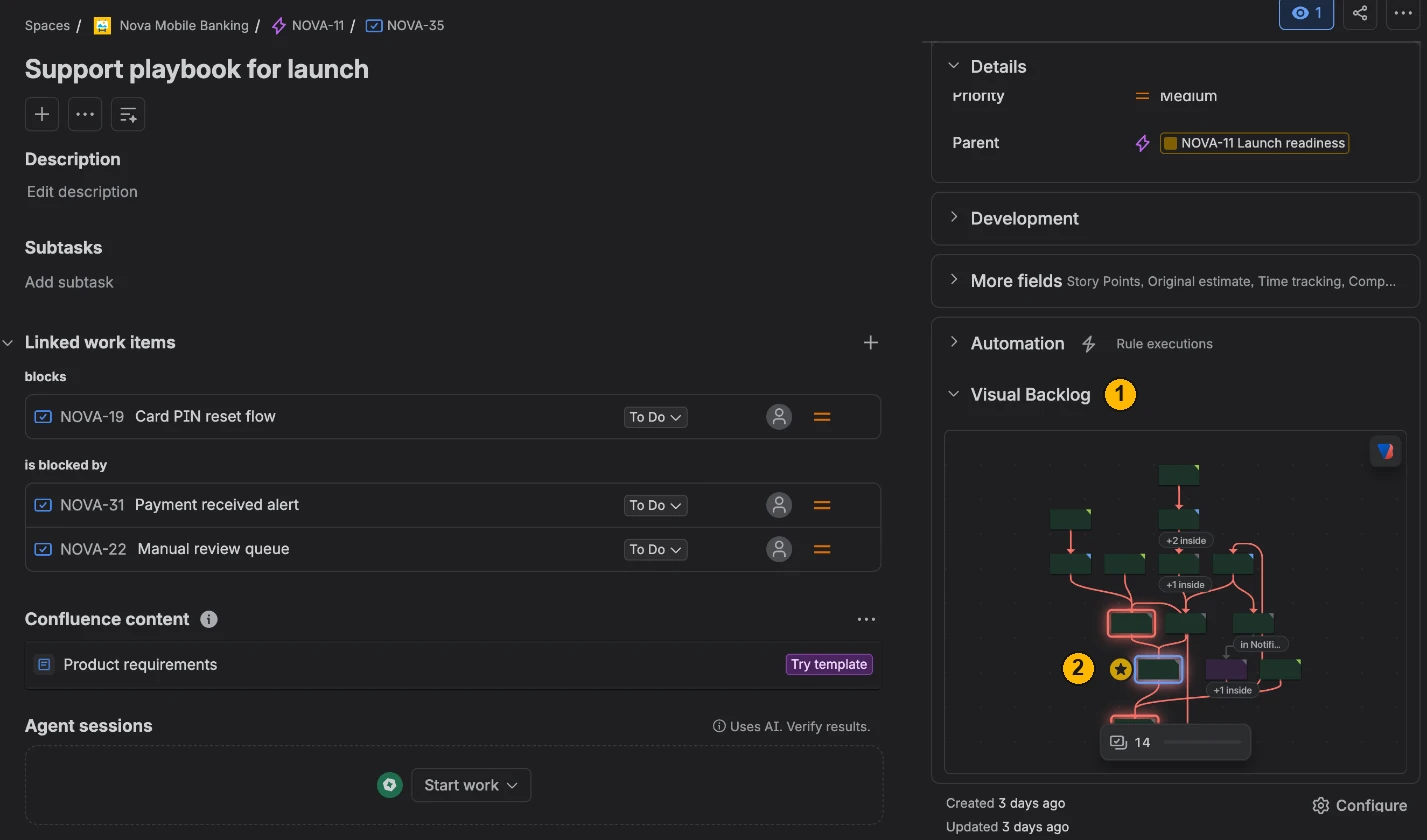
- The Visual Backlog panel, among the work item’s details.
- The work item you are looking at, marked with a star. Everything above it is what it is waiting on.
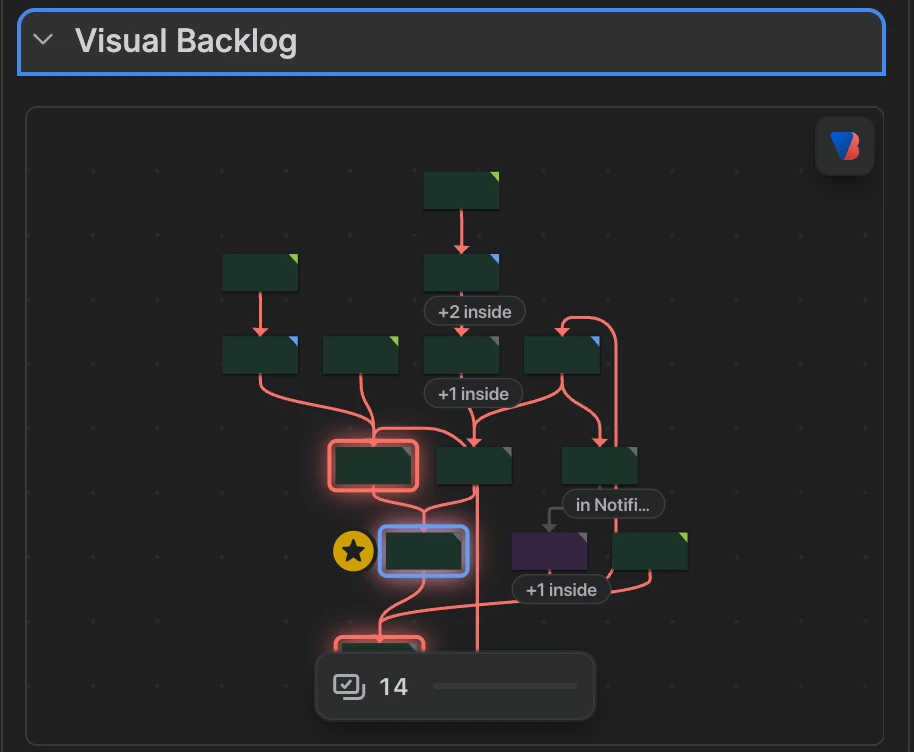
The Visual Backlog button at the top right of the map opens the full view. You can also choose Show what it waits on from the work item’s ••• menu.
Open boards and searches in Visual Backlog
- From a board: open the board’s ••• menu and choose Open in Visual Backlog.
- From Jira search: after searching, open Apps at the top right and choose Open in Visual Backlog to see the results as a map, with what they depend on.

Good to know
- The panel only counts work items you are allowed to see.
- A space’s administrators can turn the Waiting on label off for their space; see Settings for everyone in a space.
Every step, in the documentation: See what a work item is waiting on, from the work item.