Map any Jira search or saved filter
A map used to show a whole space, a board or a release. Now it can show any Jira search or saved filter, and narrow it down with filters that only offer what it found.
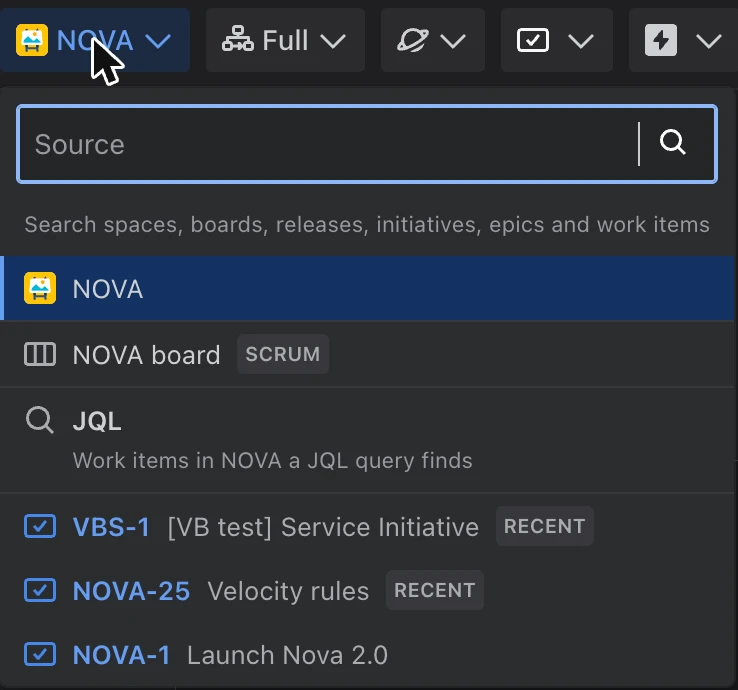
The source menu: where the map’s work comes from.
A space can hold years of work. Most days you care about a slice of it: the results of a search, a saved filter your team already uses, or one piece of work and what it depends on.
Until now, a map could show a whole space, one of its boards, or a release. It can now also show:
- A saved filter: the ones you starred in Jira are listed, and you can find any other filter you are allowed to open by its name.
- A search written in JQL, Jira’s search language.
- One work item, and everything it is waiting on (see Trace every dependency behind a deliverable).
Choose the source
The source is where the map’s work comes from: a space, a board, a release, a saved filter, a search, or one work item. Filters then narrow down what the source brought in.
To change the source, click the source menu at the top left of the toolbar. It shows the current source, usually the space’s name. Pick a board, type to find a release, a filter or a work item, or choose JQL to write a search.
Write a search the way you do in Jira
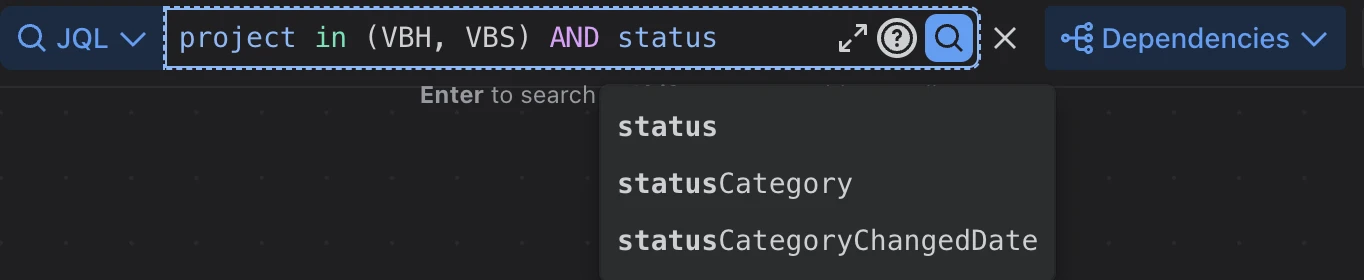
Choosing JQL opens the same search box Jira uses, with the same help: it colours your query, suggests fields and values as you type, and shows Jira’s own message if something is wrong. Press Enter and the map shows what the search finds.
Narrow it down
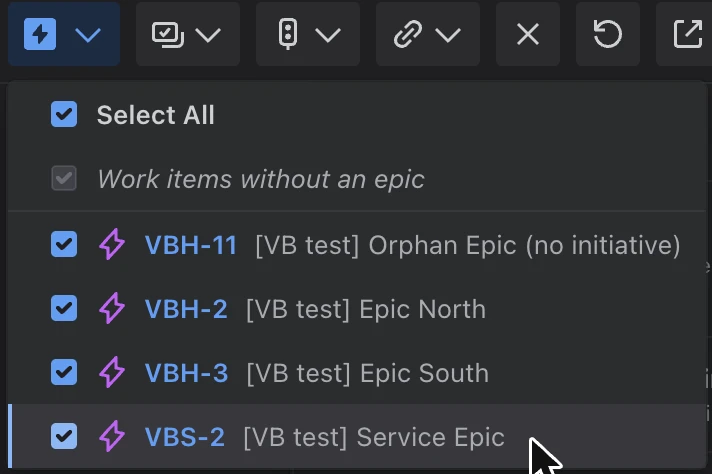
The filters in the toolbar (work type, status, epic and more) now work with every source, and they only offer what the source actually brought in. Searching for two spaces? The epic filter lists just the epics that search found, so no choice leaves you with an empty map.
Leave out finished work you no longer need
In a space that has been running for a while, most work items are already done. When you are planning what comes next, last year’s finished work only gets in the way.
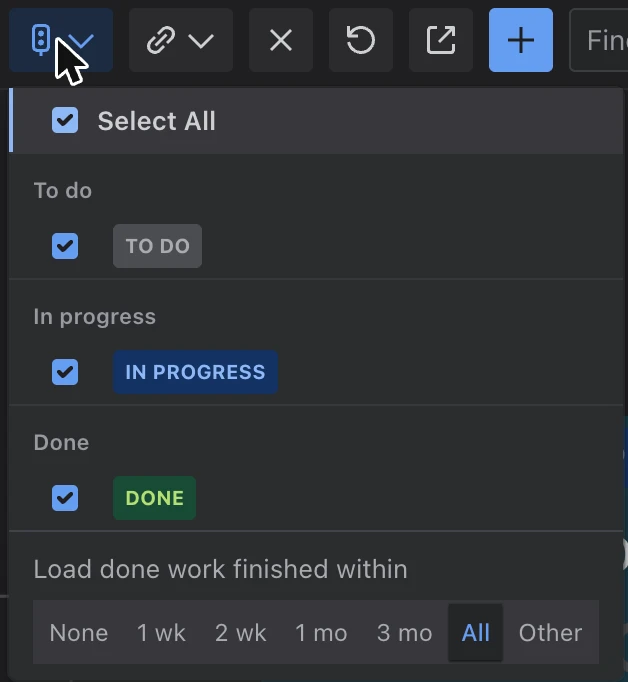
The status filter now groups statuses into To do, In progress and Done, and lets you keep only recently finished work: done in the last week, two weeks, month or three months. You can also leave finished work out entirely, or keep all of it.
Your choice shows on the button, for example Done 2 wk, so you always know what the map leaves out. Leaving out old finished work also makes big spaces load faster.