What’s new in Visual Backlog: November 2026
Short guides to everything new in Visual Backlog: find what is blocking your work, catch broken dependencies, map any Jira search, and share what you build with your team.
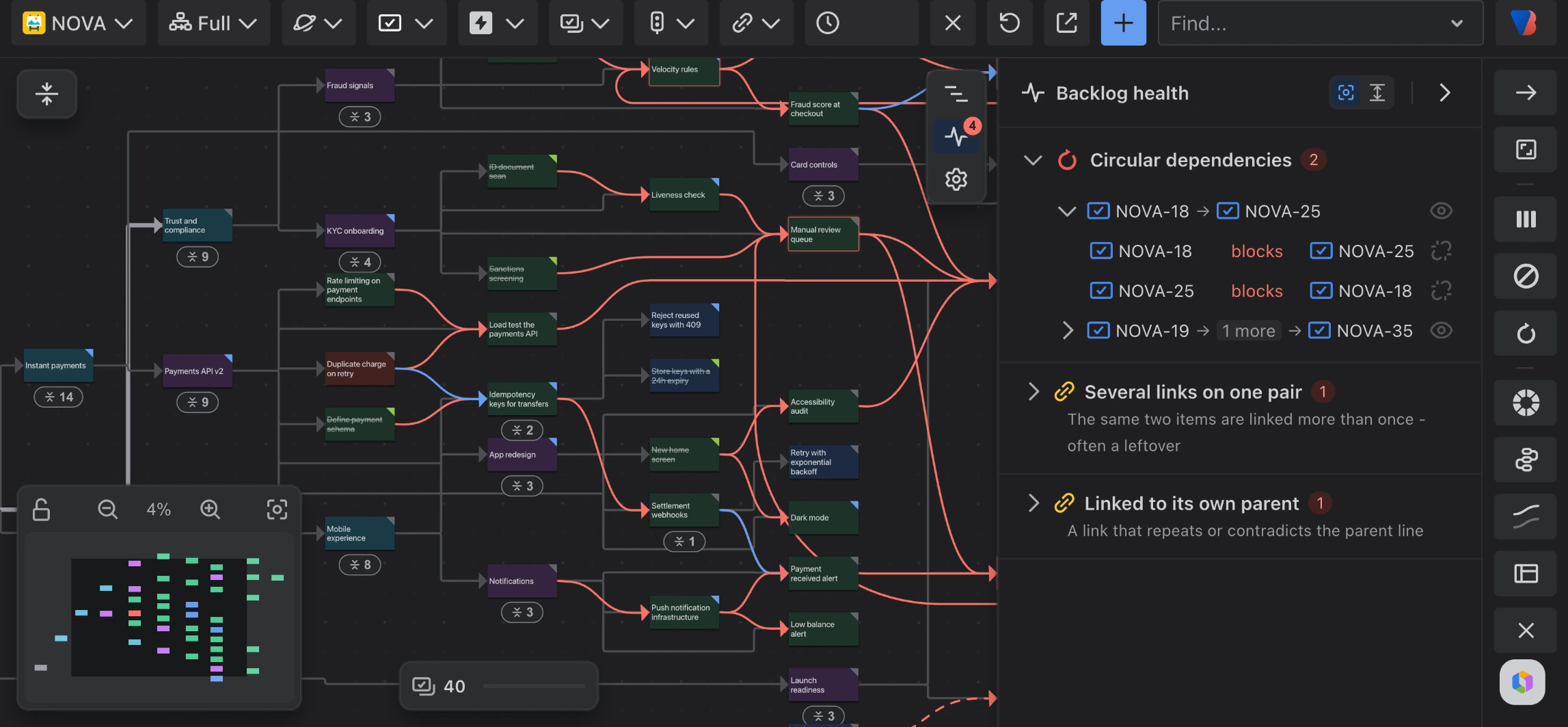
A whole Jira space as one map: each card is a work item, each line a link between two of them.
Visual Backlog turns the work in Jira into a map. Every work item is a card, and every link between two work items, such as this blocks that, is a line between their cards. Instead of opening work items one by one to follow their links, you see the whole picture at once: what is waiting on what, where work is stuck, and what has to happen before a release can ship.
This release brings the biggest update since Visual Backlog launched. The map has been rebuilt, and there is a lot that is new:
- Pick any work item and see everything it is waiting on.
- Catch broken dependencies, such as two tasks that each wait on the other.
- Map any Jira search or saved filter. Until now a map could only show a whole space, one of its boards or a release; now it can show any set of work, even across spaces.
- Save a map and share it with your team.
- Open any work item in Jira and see right away whether something is blocking it, and what.
Each topic has its own short guide, so you can read only what you need. No prior knowledge of Visual Backlog is assumed.
Part 1
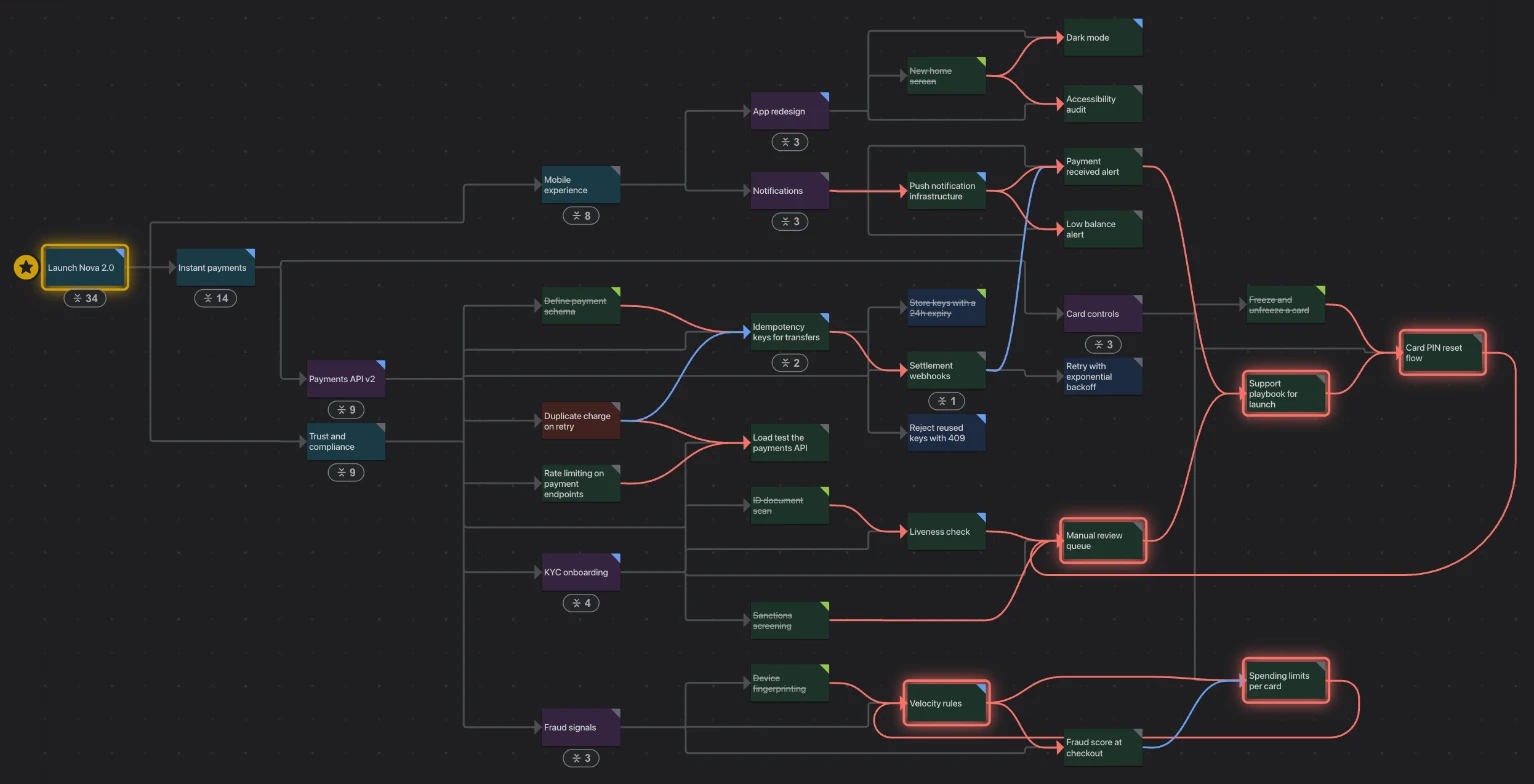
Trace every dependency behind a deliverable, across teams
Jira shows a work item’s direct links. Visual Backlog follows them all the way down: every blocker, the blockers behind those, and the teams they belong to, in one picture.
Part 2
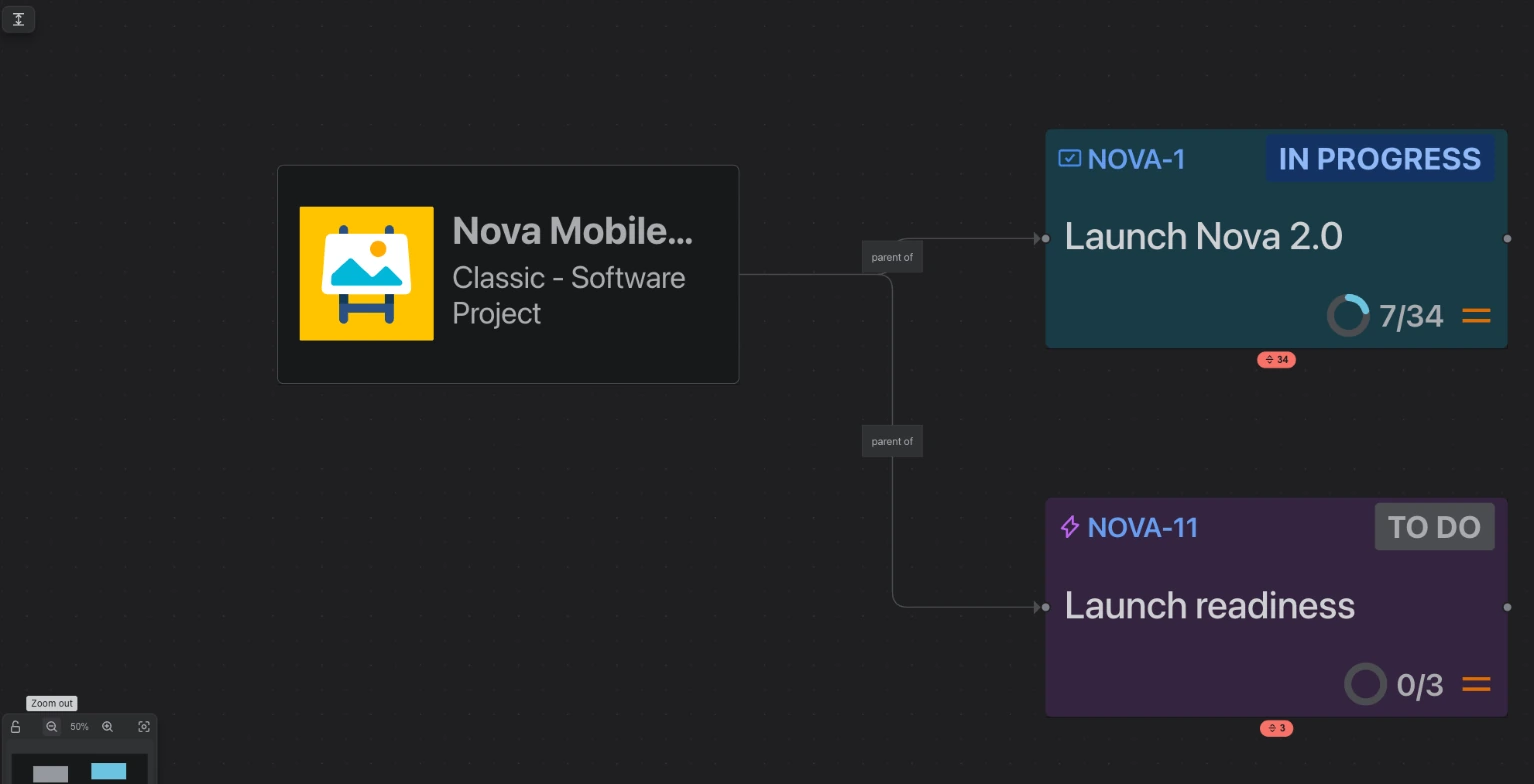
See the big picture, then the details
A large space can hold hundreds of work items. Collapse them to the level you care about, such as epics, and still see how those pieces depend on each other.
Part 3
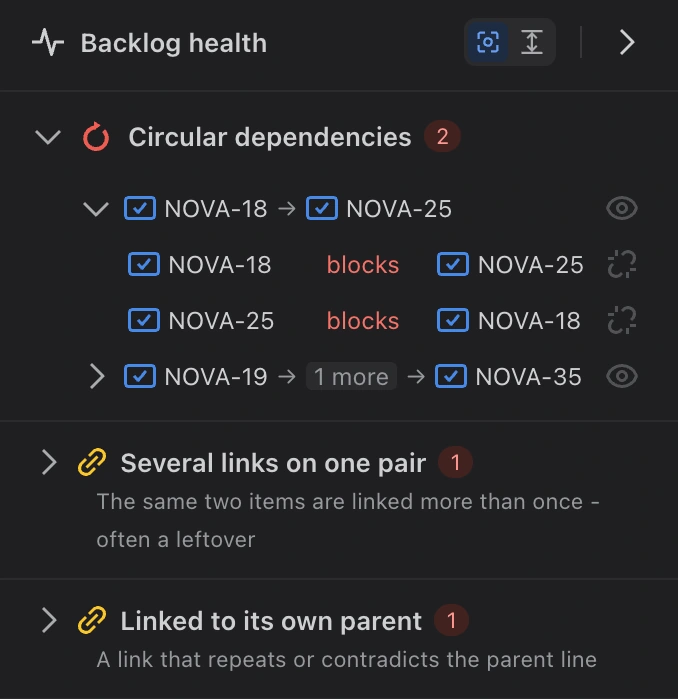
Catch broken dependencies before they stall your plan
Two tasks that each wait for the other can never start. Backlog health finds problems like this in your Jira links and helps you fix them in a click.
Part 4
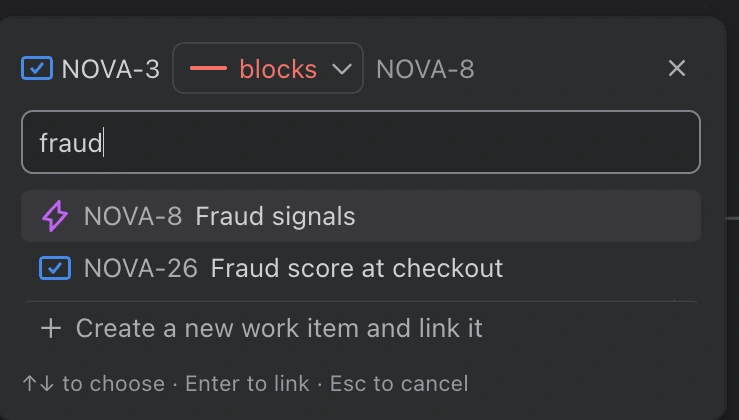
Link to any work item without leaving the map
Drop a link anywhere on the map to connect to any work item in any space, or create the missing one, and it is saved in Jira as you plan.
Part 5
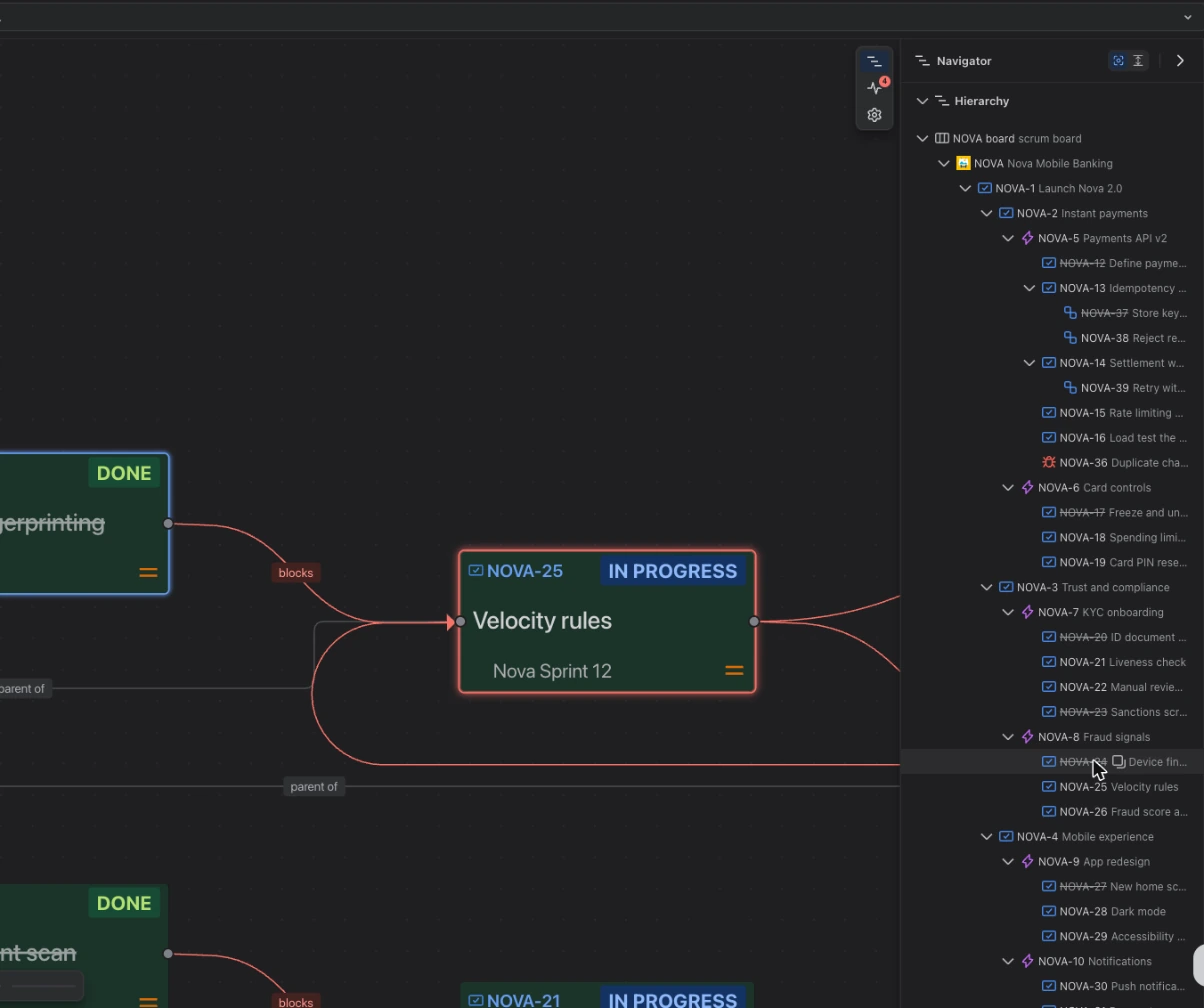
Find your way around a large map
A list of every work item and link that the map follows as you point, and two keys, Shift and Alt, that answer “what is this connected to?” without a single extra click.
Part 6
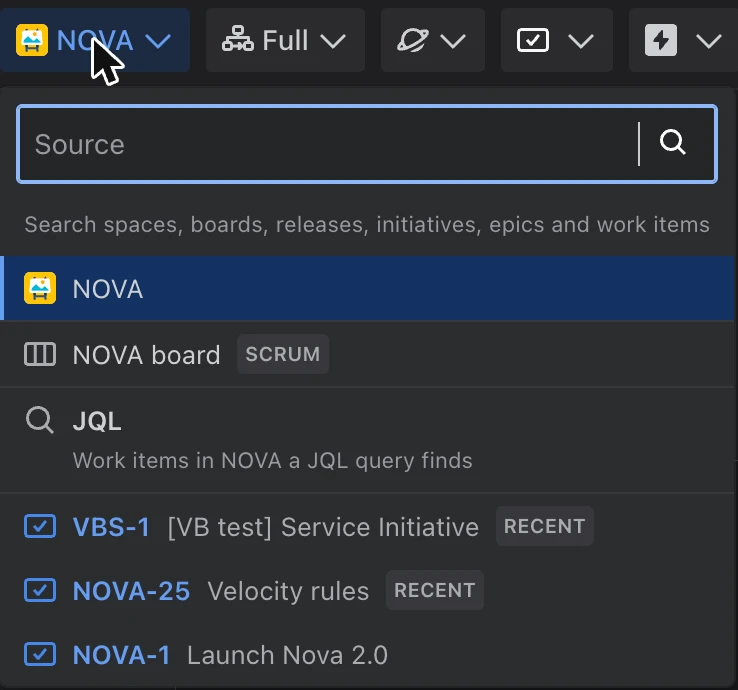
Map any Jira search or saved filter
A map used to show a whole space, a board or a release. Now it can show any Jira search or saved filter, and narrow it down with filters that only offer what it found.
Part 7
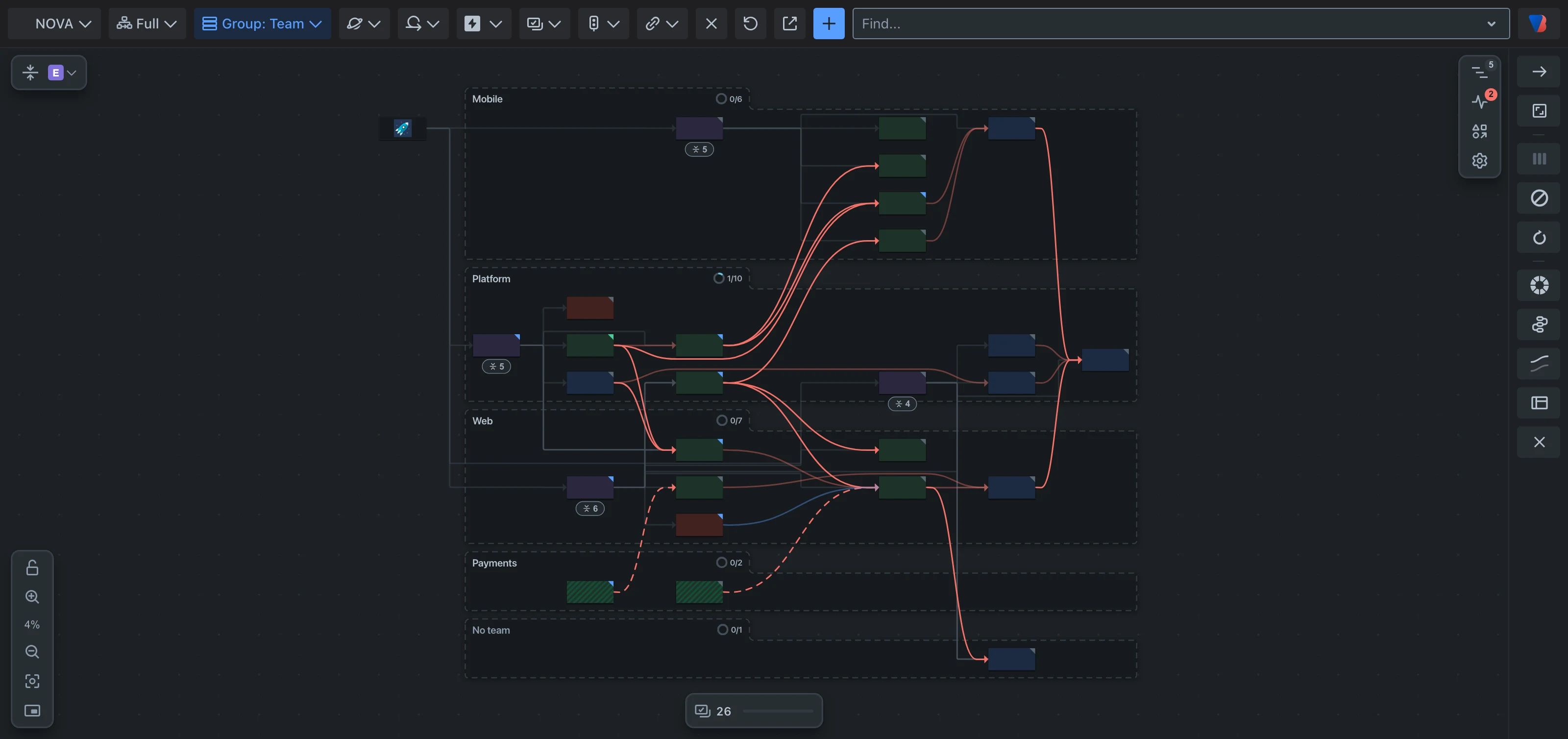
Group the map into lanes, and go back to where you were
Put the map into lanes, one for each team, sprint, epic or release, and see which dependencies cross from one lane to another. Back and Forward take you through the maps you have looked at.
Part 8
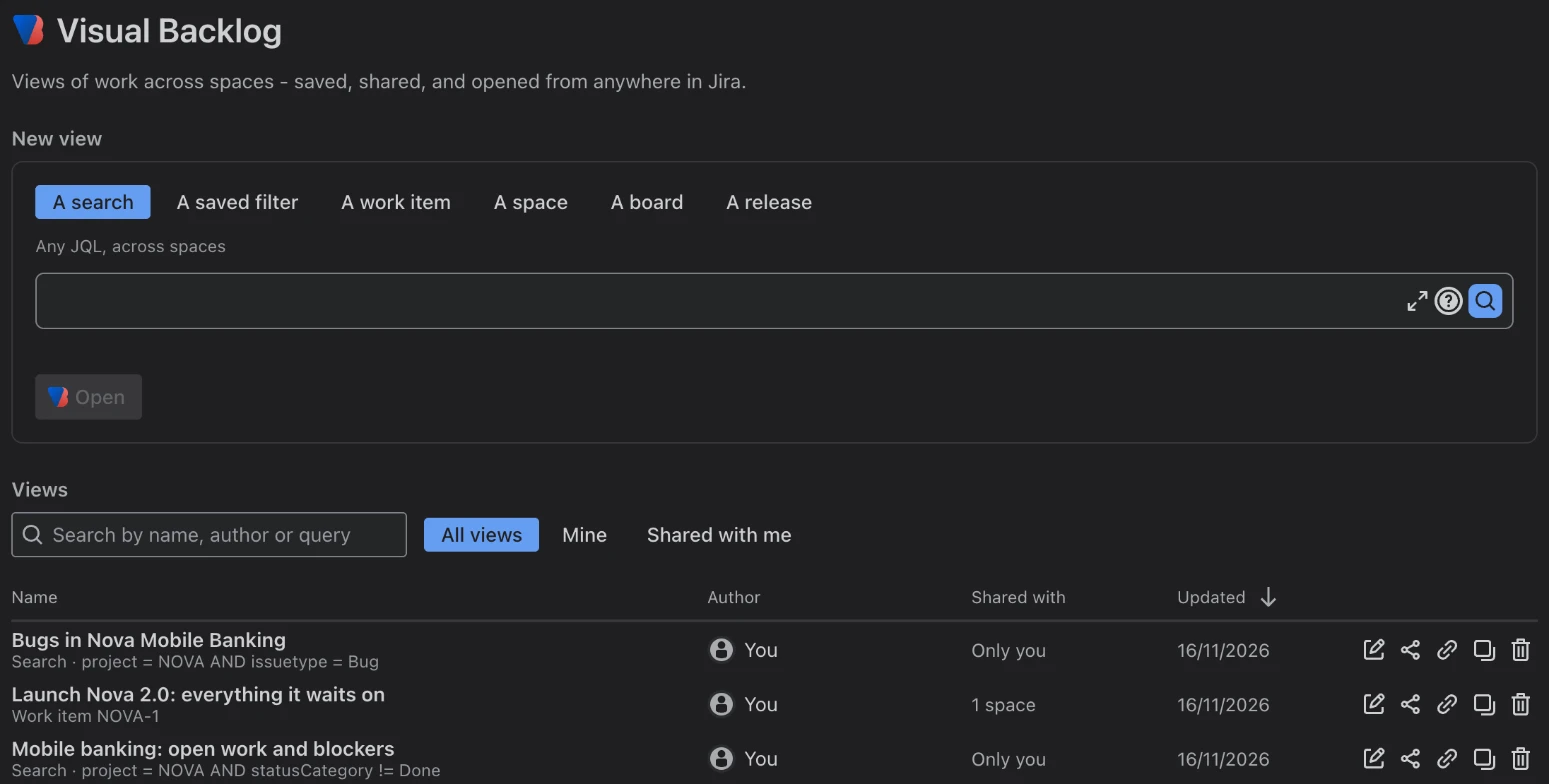
Save a map and share it with your team
Build a map once, save it with a name, and share it with your team the way you share a Jira filter. Everyone sees only the work they are allowed to see.
Part 9
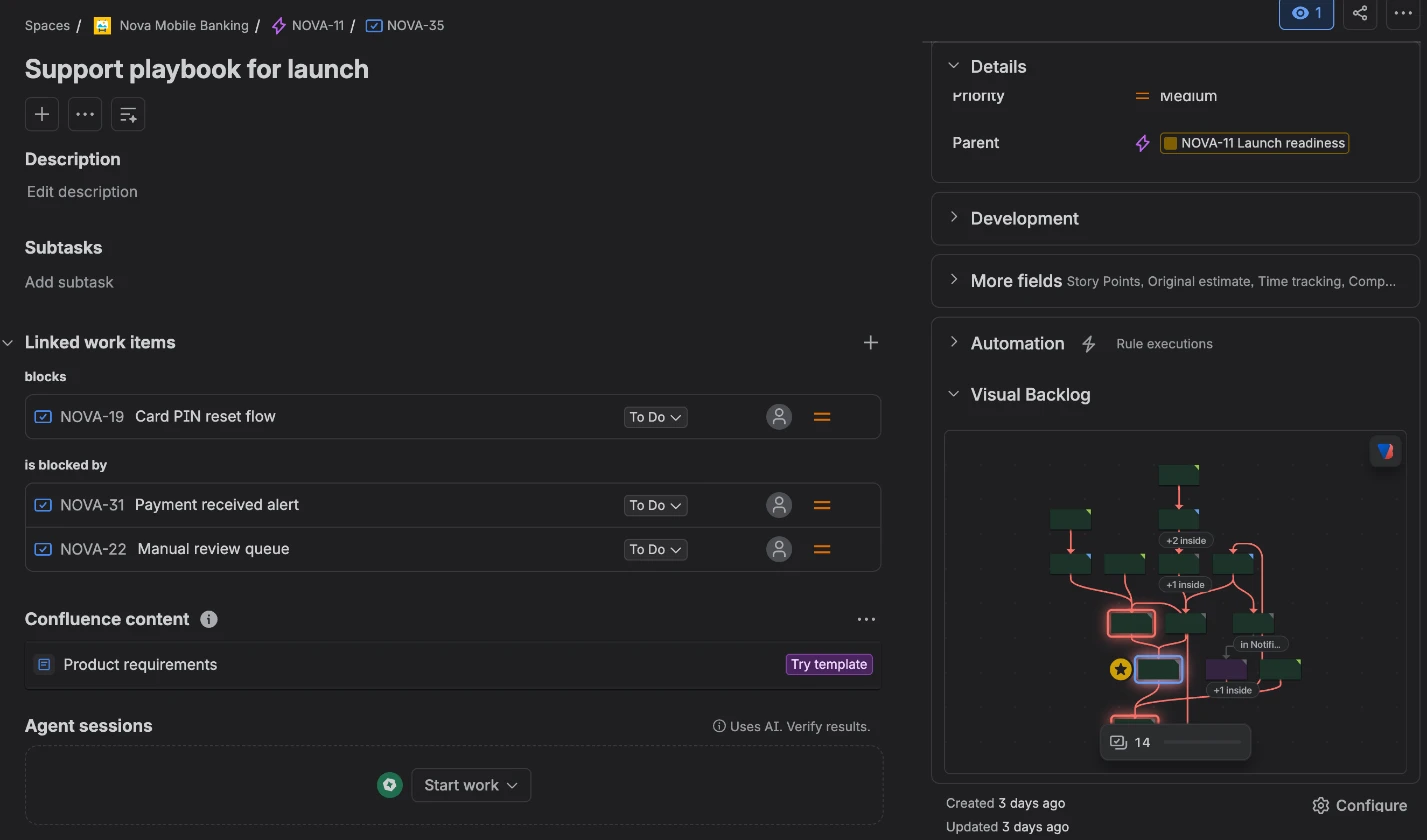
See what is blocking a work item without leaving it
Every work item now says whether anything is blocking it, and can show what. Boards and Jira searches open in Visual Backlog in one click.
Part 10
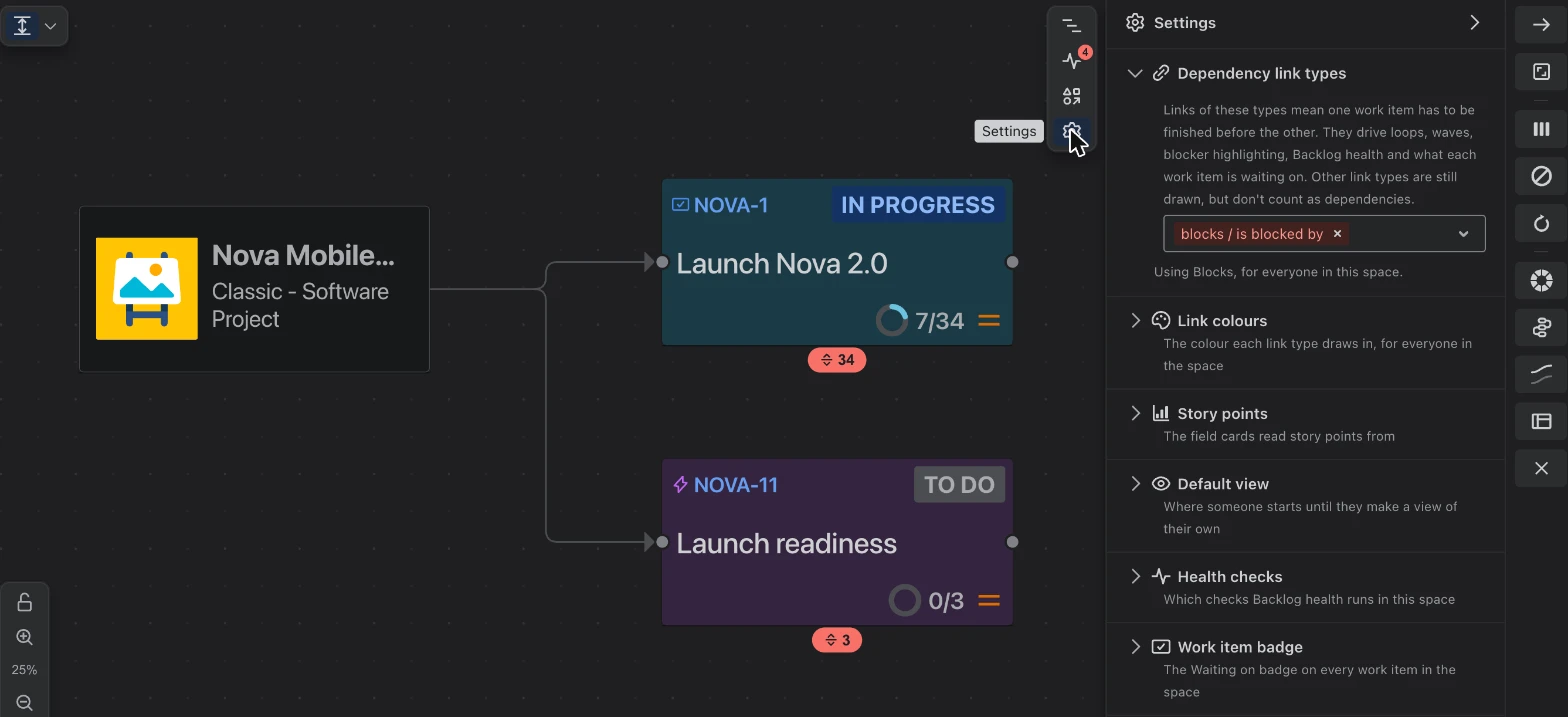
Settings for everyone in a space
Which links mean “blocked”, what colour each link is, where story points live: a space’s administrators now set these once, and everyone in the space sees the same map.
Part 11
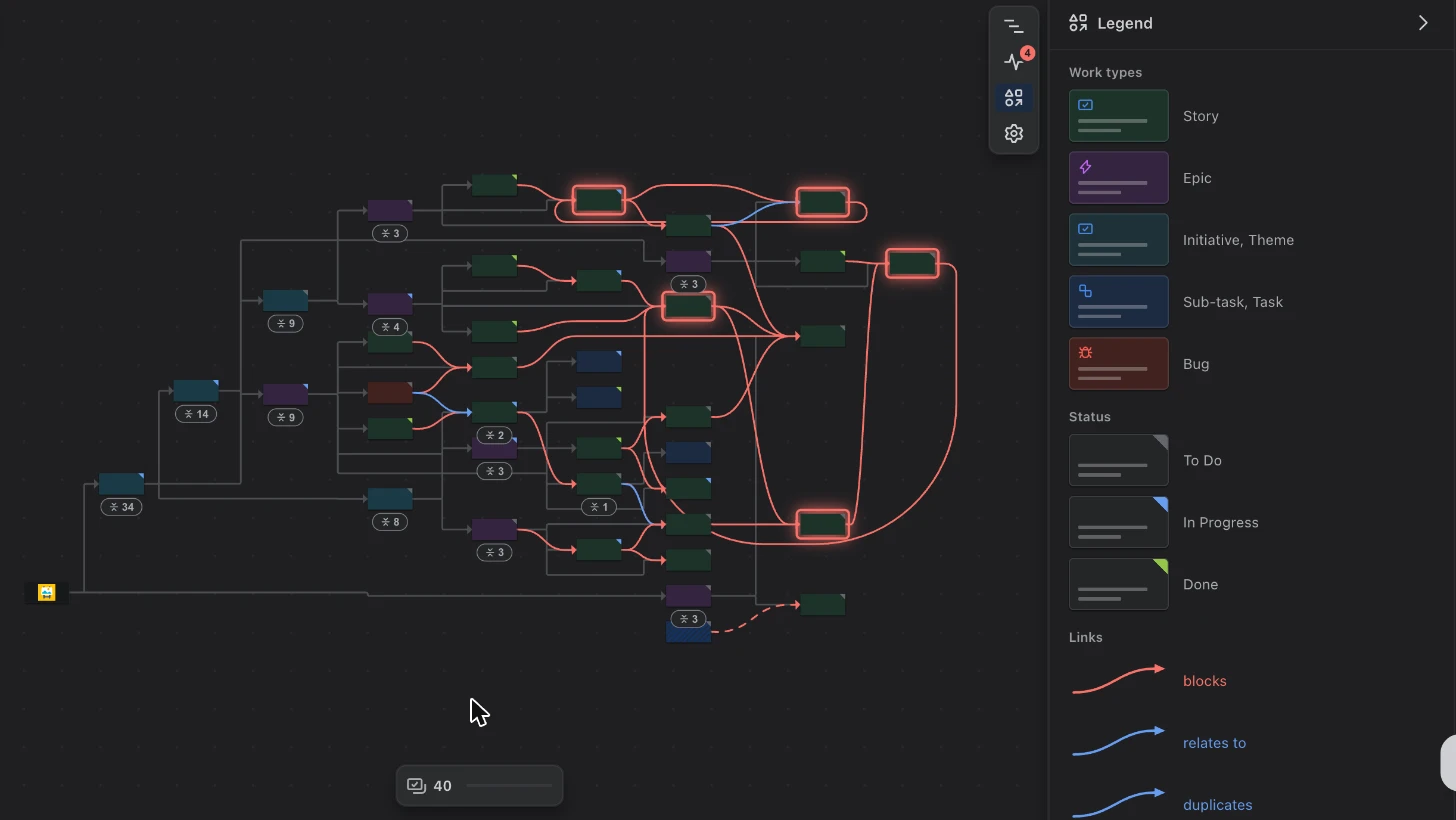
Faster, calmer and easier to read
Visual Backlog now opens about a third faster, keeps the picture steady when you focus on something, and explains every colour and line in a new legend.
Try it
New to Visual Backlog? Install it from the Atlassian Marketplace: it is free for up to 10 users. Once installed, open any Jira space and choose Visual Backlog from the space’s menu.
Questions, or would you like a walkthrough with your own work? Contact us through the support portal.