Find your way around a large map
A list of every work item and link that the map follows as you point, and two keys, Shift and Alt, that answer “what is this connected to?” without a single extra click.
VB
Visual Backlog Team
November 16, 2026
· 2 min read
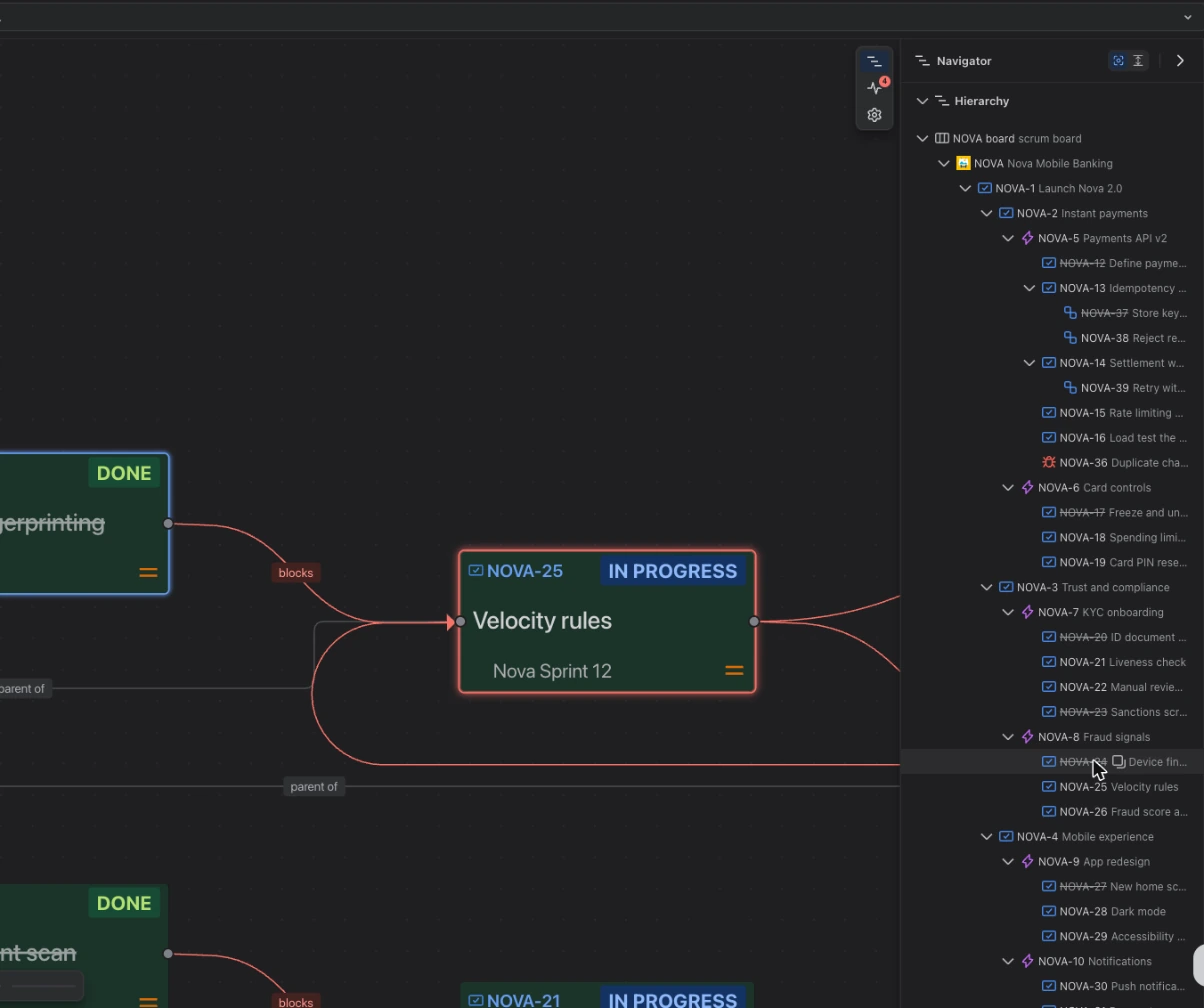
The Navigator: every work item and every link, as a list beside the map.
A map of a busy space can hold hundreds of cards. Finding one, or seeing what it is connected to, should not mean scrolling around and squinting at lines.
The Navigator: a list the map follows
The Navigator panel lists what is on the map in two ways: as the hierarchy (epics, then their stories, and so on), and as a list of every link, grouped by the two work items it joins.
- Point at a row and the map moves to show it.
- Click a row to go there and stay.
- Click a card on the map and its row opens in the list.
Two keys that answer questions
Hold Shift or Alt (on a Mac, Alt is the Option key) and the pointer changes to tell you what a click will do.
| Do this | On | What happens |
|---|---|---|
| Hold Shift and point | a card | See what it is linked to; everything else fades |
| Hold Shift and point | a line | Highlight the two work items it joins |
| Shift + click | a card | Keep showing only that card and what it is linked to |
| Alt + click | a card | Zoom so the card fills the screen |
| Alt + click | a line | Zoom to both ends of the line |
| Alt + click | an empty spot | Zoom out to the whole map |
| Shift + click | a Navigator row | The work item and what it is linked to |
| Alt + click | a Navigator row | Just that work item, without what is inside it |