Link to any work item without leaving the map
Drop a link anywhere on the map to connect to any work item in any space, or create the missing one, and it is saved in Jira as you plan.
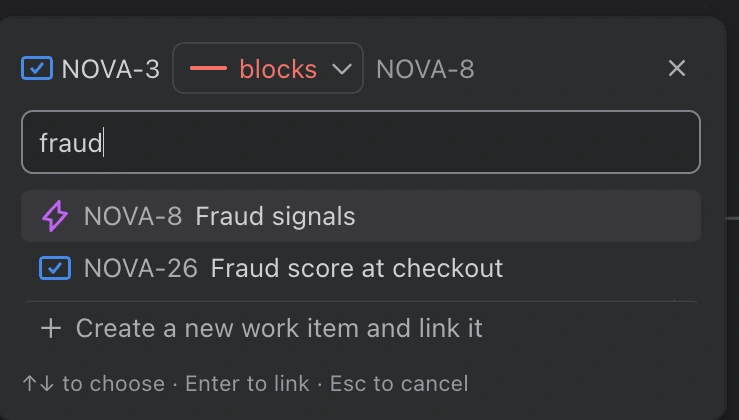
Drop a line on an empty spot and pick what to link to.
Dependency planning usually happens on a whiteboard: the team stands around it, draws arrows between sticky notes, and someone promises to “put it in Jira later”. Visual Backlog already let you draw a line between two cards on the map and saved it as a link in Jira. But that only worked when both work items were already on the map.
Now you can drop the line anywhere. Let go on an empty spot and a small Link to… box opens right there, so you can link to any work item in any space, or create the missing one, without leaving the map.
How to use it
- Point at a card: small dots appear on its edges.
- Drag from a dot and let go on an empty spot of the map.
- In the Link to… box that opens, search this space or any other, pick the link type (for example blocks), and press Enter. Or choose New work item to create it and link it in one go.
When the link is saved, the map rearranges itself and the two cards flash for a moment, so you can see where they went. While you drag, a short note by the pointer tells you what letting go will do, for example Release to link to NOVA-12, or Already linked to NOVA-12.
Changing or removing a link
Each line has a small label naming its link type. Click the label to change the type, or to remove the link. When two work items are linked in more than one way, each link has its own label.
Good to know
- You can only link work items you are allowed to edit in Jira.
- A work item you create from the map flashes in the same way, next to the card it was created under.